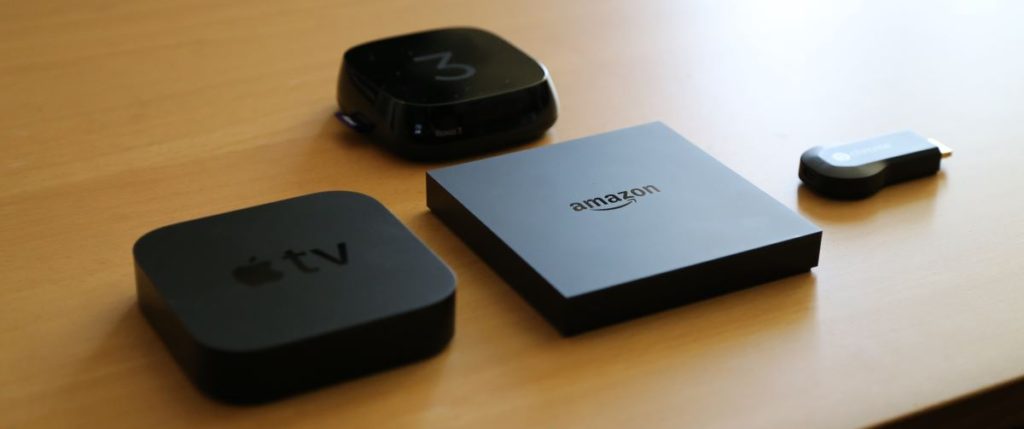
What Is Chromecast?
On this page
Chromecast is a streaming dongle produced by Google and is used to directly stream contents from users’ smartphones as well as control playback of Internet-streamed audio and visual contents on a high-definition television or home audio system through mobile and web apps that support the Google Cast technology.
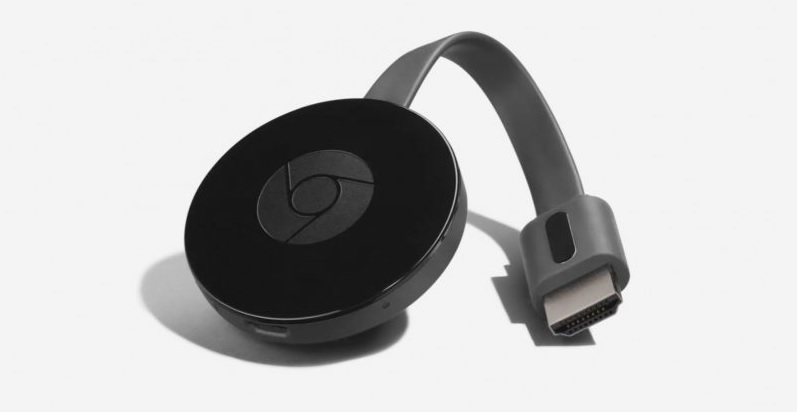
You can use your Mobile, Laptop, Tablets to stream content on Chromecast but streaming Kodi on Chromecast can be a little bit tricky since it is not possible to install Kodi on Chromecast Stick.
How to use IPTV on Chromecast
In this section, we will show you how to install IPTV on chromecast.
BubbleUPnP features
BubbleUPnP works in tandem with Android BubbleUPnP. secure Internet access to your UPnP/DLNA Media Servers content with Android BubbleUPnP and foobar2000. stream and download your music, video, photos with your Android device from a mobile or WiFi connection with optional transcoding to reduce bandwidth.
Chromecast, Chromecast Audio, Nexus Player, Nvidia Shield, and other Google Cast devices
• DLNA TV, Smart TV
• music receivers from popular HiFi brands
• Xbox 360, Xbox One, Xbox One X, PlayStation 3 and 4(**)
• Amazon Fire TV and Fire TV Stick
• local Android playback
BubbleUPnP can access your media from a lot of sources, including:
• UPnP/DLNA media servers
• local media stored on your Android device
• popular cloud media storage providers: Google Drive, Google Photos, Box, Dropbox, OneDrive
• music services: TIDAL, Qobuz
Step 1Now you have to turn on your TV with the Chromecast and open the downloaded app BubbleUPnP on your smartphones.
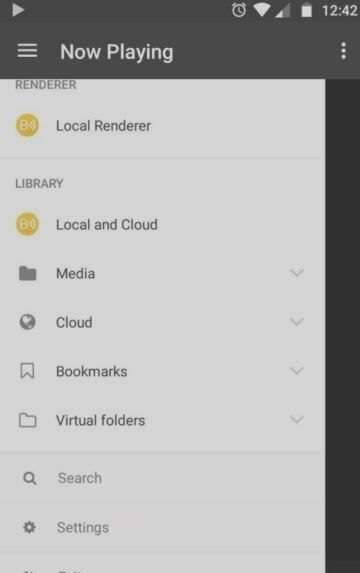
Step 2You have to make sure that your smartphone and Chromecast gets connected to the same WiFi network.
Step 3Then check that your device gets connected with the Chromecast by just opening the left side menu and then select the device.
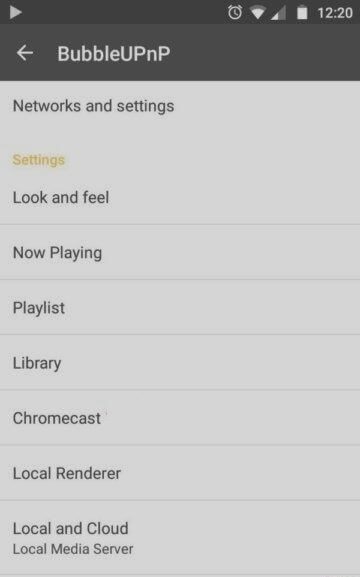
Step 4Moreover, the Chromecast is not compatible with all audio formats and video codecs that used in the list of IPTV player.
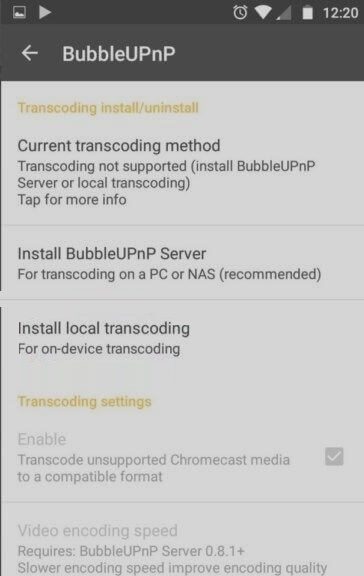
Step 5If you want to convert the format then you have to install an add-on for the application.
Step 6In the application, you have to go to the app settings from the menu that is located on the left side of the screen.
Step 7Now open sub-menu Chromecast.
Step 8Now click on the items that installed for the local transcoding. Now the application will download all the extra part just for performing the transcoding directly from your Smart Phone.
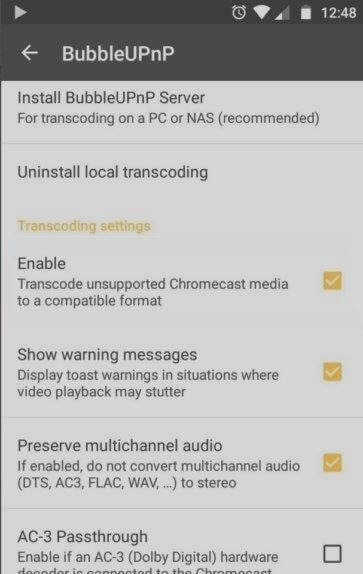
Step 9Once the installation of the Add-on is done, we have to make sure to tick Enable section of the Transcoding settings.
Step 10Now you can easily stream IPTV channels on Chromecast. The app allows you to manage the lists IPTV format .m3u8 file, a simple file containing all the information for streaming.
Step 11Download your M3U file and copy it into your smartphone’s storage. Open the app up and go to the item Library and select Internal storage. Now find the M3U file you just copied and open it and wait for your playlist to load.
Step 12Now you can select any desired channel from the list and begin casting IPTV channels on your chrome cast.
Did this guide work for you?
Thanks — your feedback helps us keep this guide accurate.