How to Set Up IPTV on TiviMate IPTV Player?
TiviMate IPTV Player is an Android base application which can use to watch IPTV. It supports both Remote playlist and Xtream codes system.
Tivimate is a common app on Firestick to stream IPTV channels.

Here we are going to check how can we add IPTV channels on TiviMate IPTV Player via Xtream codes.
And at the end of article we will review some useful feature on app like Catch-up, Recording, Subtitle and etc.
Setup Tivimate IPTV Player via Xtream Codes API
Step 1First of all download and install app from here:
https://play.google.com/store/apps/details?id=ar.tvplayer.tv
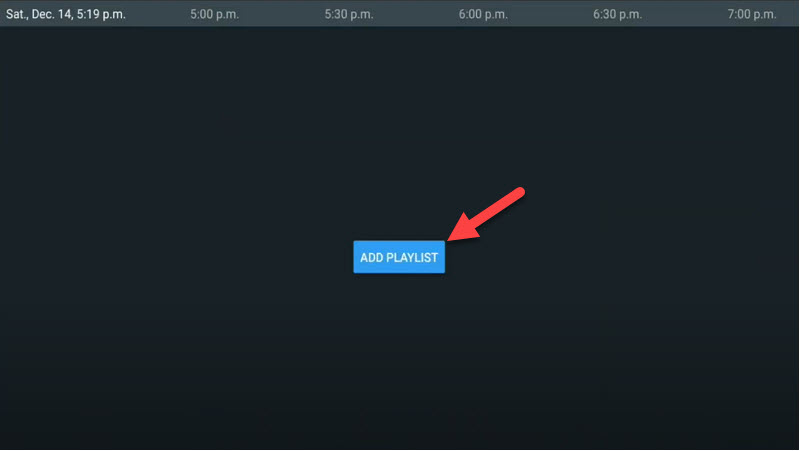
Step 2After open Tivimate click on “ADD PLAYLIST“.
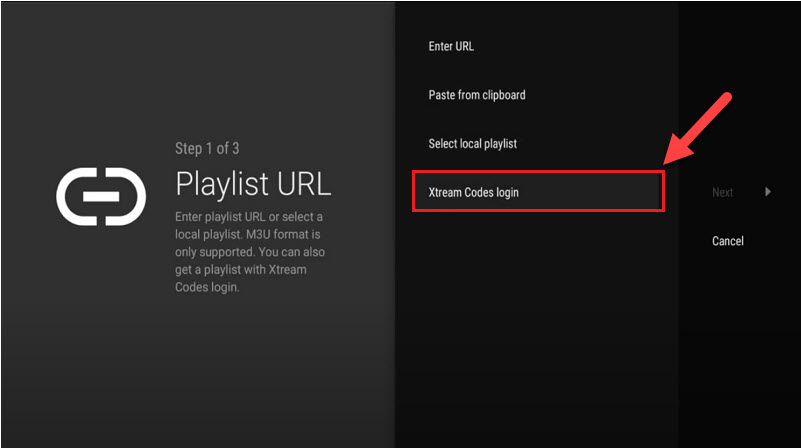
Step 3 Click on “Xtream Codes login” and them Next.
Step 4 In this step you need to add Server address, Username and Password which can be found on your M3U url.
The progressive IPTV providers give you a dashboard which you can access your M3U url in dashboard.
How to find Server Address, Username and Password?
If you want to have VODs too, mark “Include VOD” .
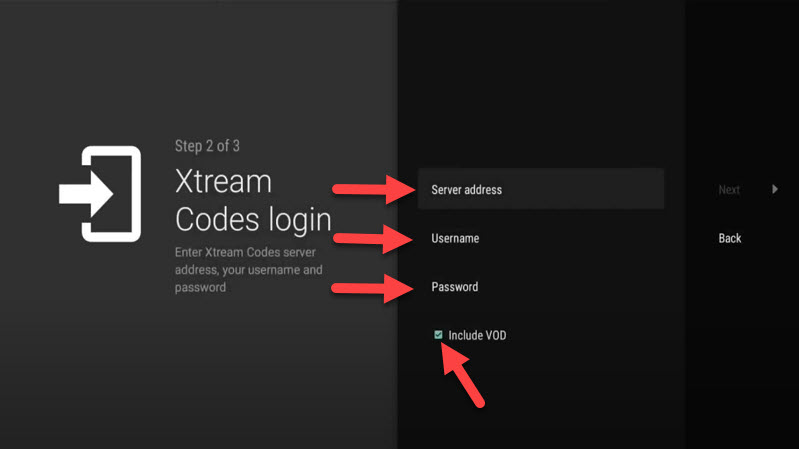
Go on and the channels will appear after a while.
Features on Tivimate IPTV Player
You access many different useful features on Tivimate, we are listing some of them:
• Modern user interface designed for big screens
• EPG – Scheduled TV guide update
• Auto-start on Boot
• Favorite channels
• Picture-in-Picture
• Catch-up
• Record
After you open channel you can see this view, you can access EPG by click on “TV guide“.
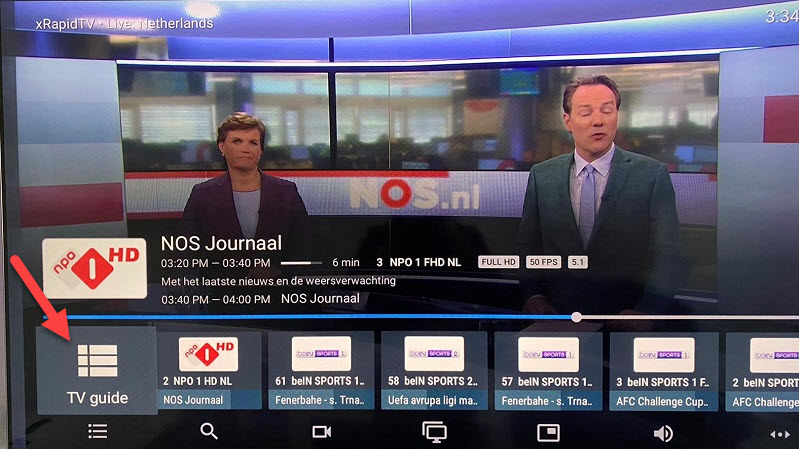
By holding the “OK” button for 2 seconds you can see the setting menu, here you can see many features like Recording.
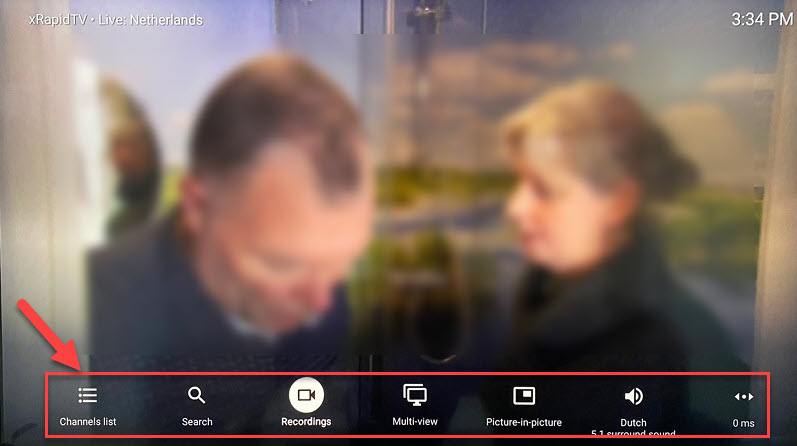
Scroll right a little and you will see other options like subtitle enable “CC” or “Add to Favorites” .
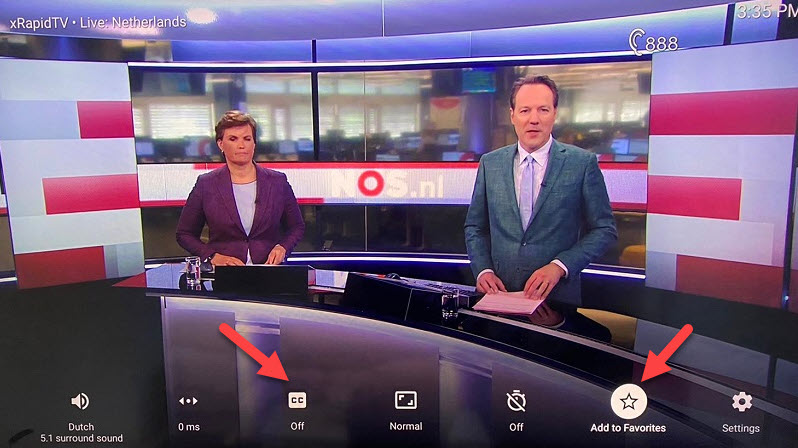
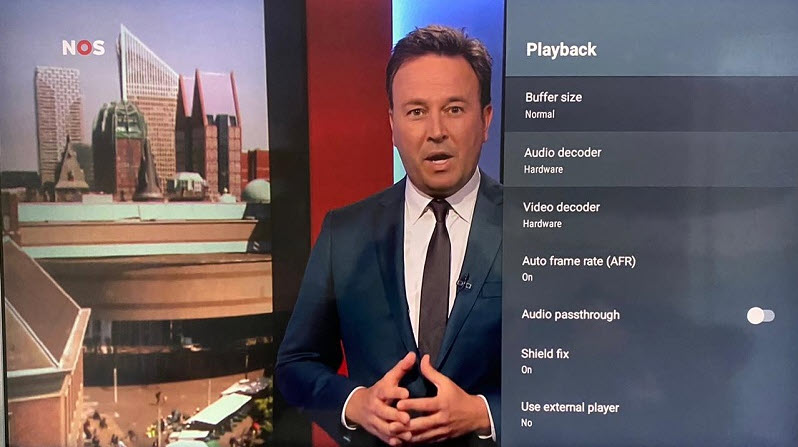
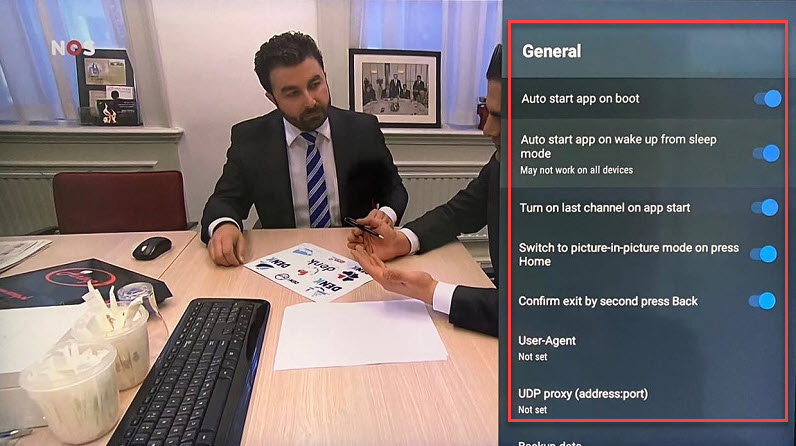
At the end right click on “Setting” to see more options.
Please feel free to discuss it with us in the comment section down below.
Did this guide work for you?
Thanks — your feedback helps us keep this guide accurate.