 MainIPTV Provider
 How to Set Up IPTV on Xbox One via Kodi?
Kodi, one of the most popular applications for streaming IPTV channels is now available to download for Xbox One on Xbox Live. This is excellent news for Xbox One owners, as the Kodi is an amazingly flexible and versatile software for streaming IPTV channels. With its vast support for third-party add-ons that can transform the software into a DVR, allow it to stream from numerous IPTV sources.

How to setup IPTV on Xbox One
In this tutorial, we are going to show you how to bring IPTV channels to your Xbox One console using Kodi.
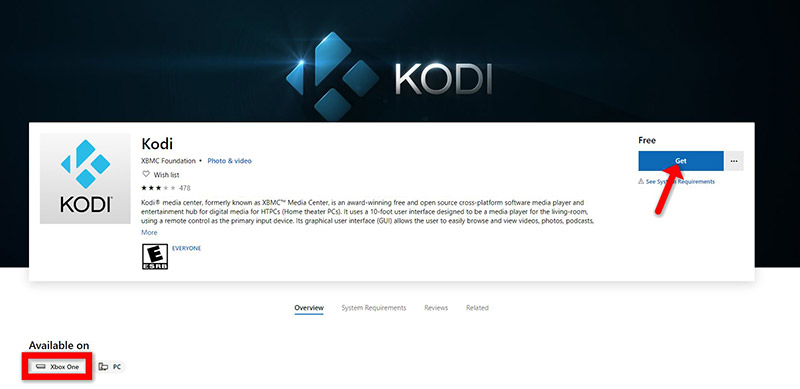
Step 1Turn your Xbox One on and make sure it’s connected to the internet and that you’re logged in to your Xbox Live account. Go to the “Xbox Live store” and search for “Kodi”. If you don’t see it there, the app may have been momentarily removed from the Xbox Live store. Now install the app by clicking on “Get“.
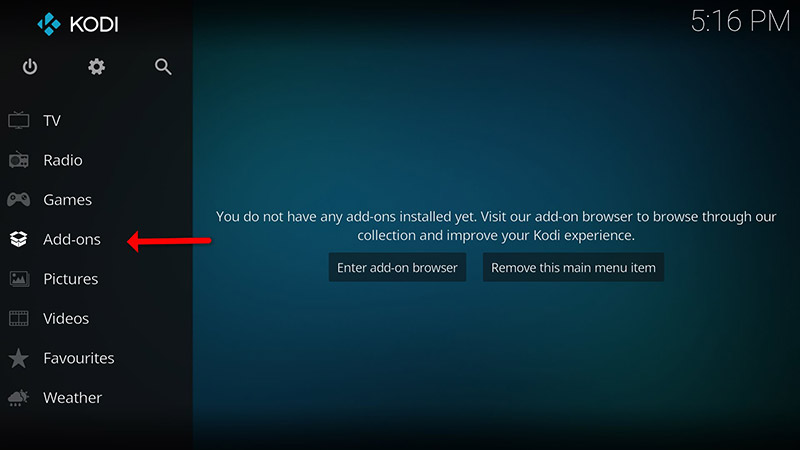
Step 2When Kodi first loads up, it will appear quite blank. It doesn’t contain any add-ons or doesn’t display the videos you have on your hard drive. What we require are some add-ons.
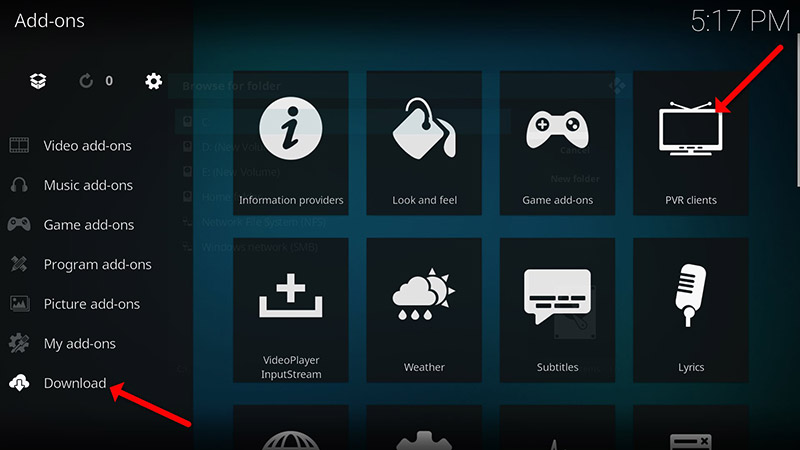
Click on “Add-ons“.
Step 3Now click on “Download” then select “PVR clients“.
Note: We are going to download and install the PVR add-on here, after installing no need to go to the “Download“.
You can find the installed add-ons “My add-ons“
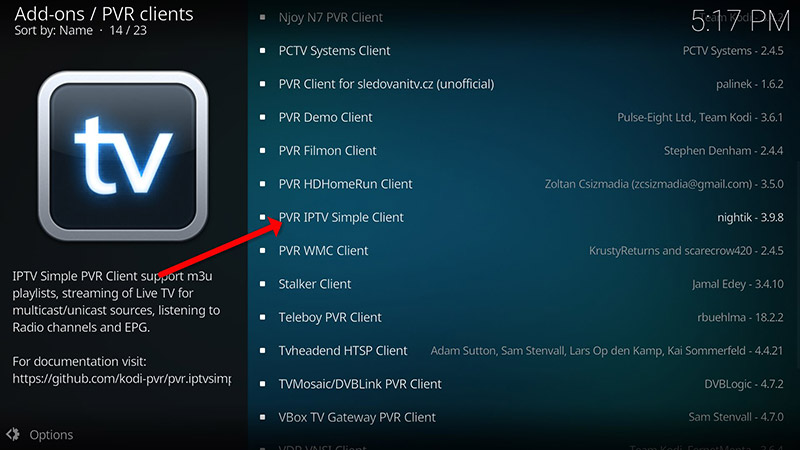
Step 4Select “PVR IPTV Simple Client“.
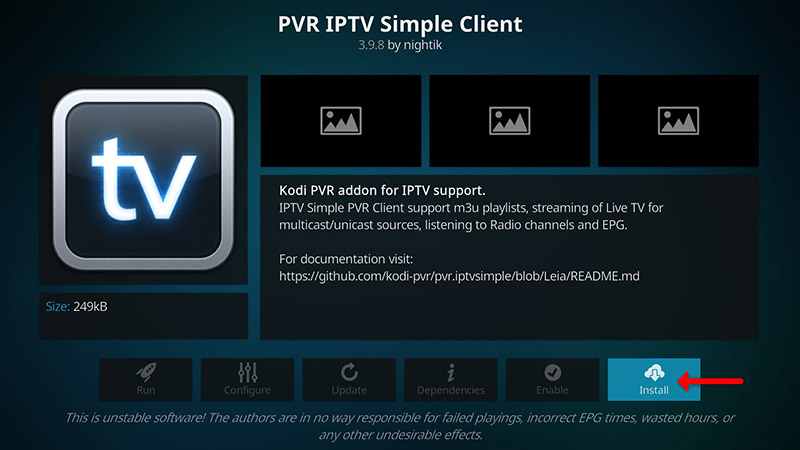
Step 5Now click on “Install“.
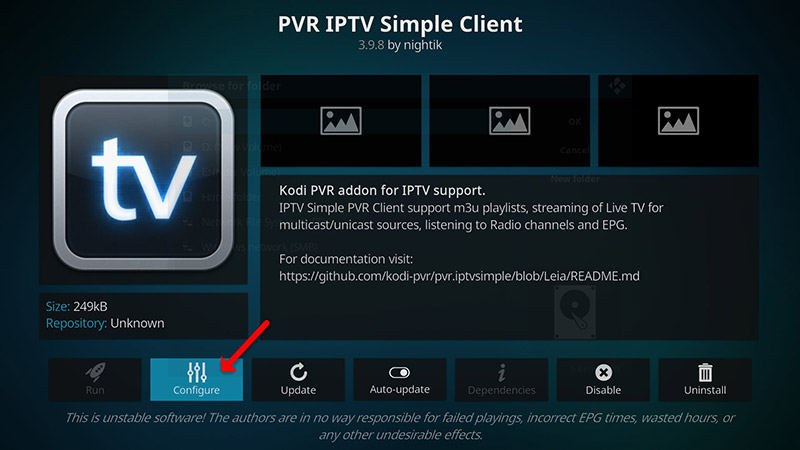
Step 6After installing “PVR IPTV Simple Client” head back to “My add-ons” then “PVR Clients” and run the add-on.
Now click on “Configure“
Step 7Now select “M3U Play List URL“.
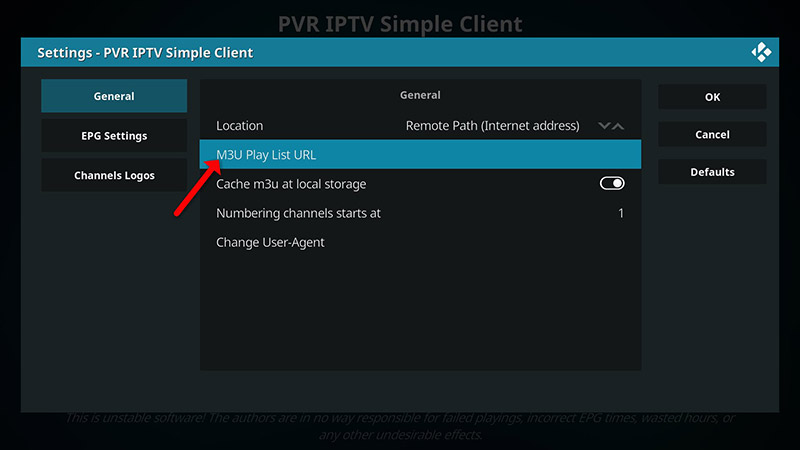
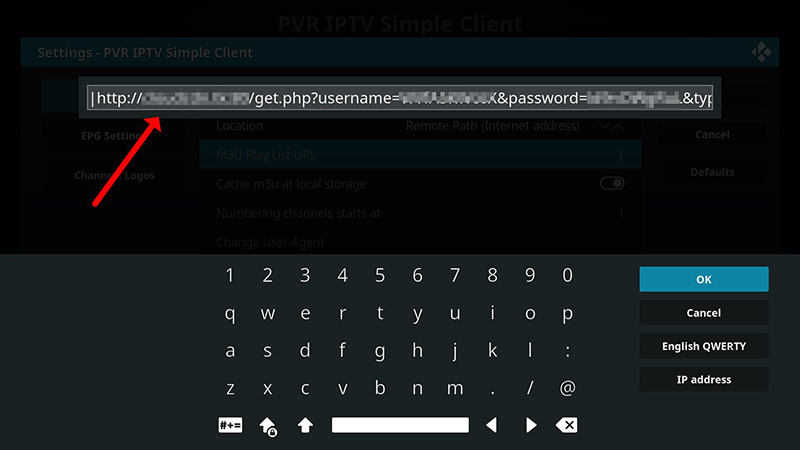
Step 8Enter the M3U URL provided by your IPTV distributor and click “OK“.
Note: The progressive IPTV providers give you a dashboard which you can generate your M3U url in dashboard.
How to add EPG
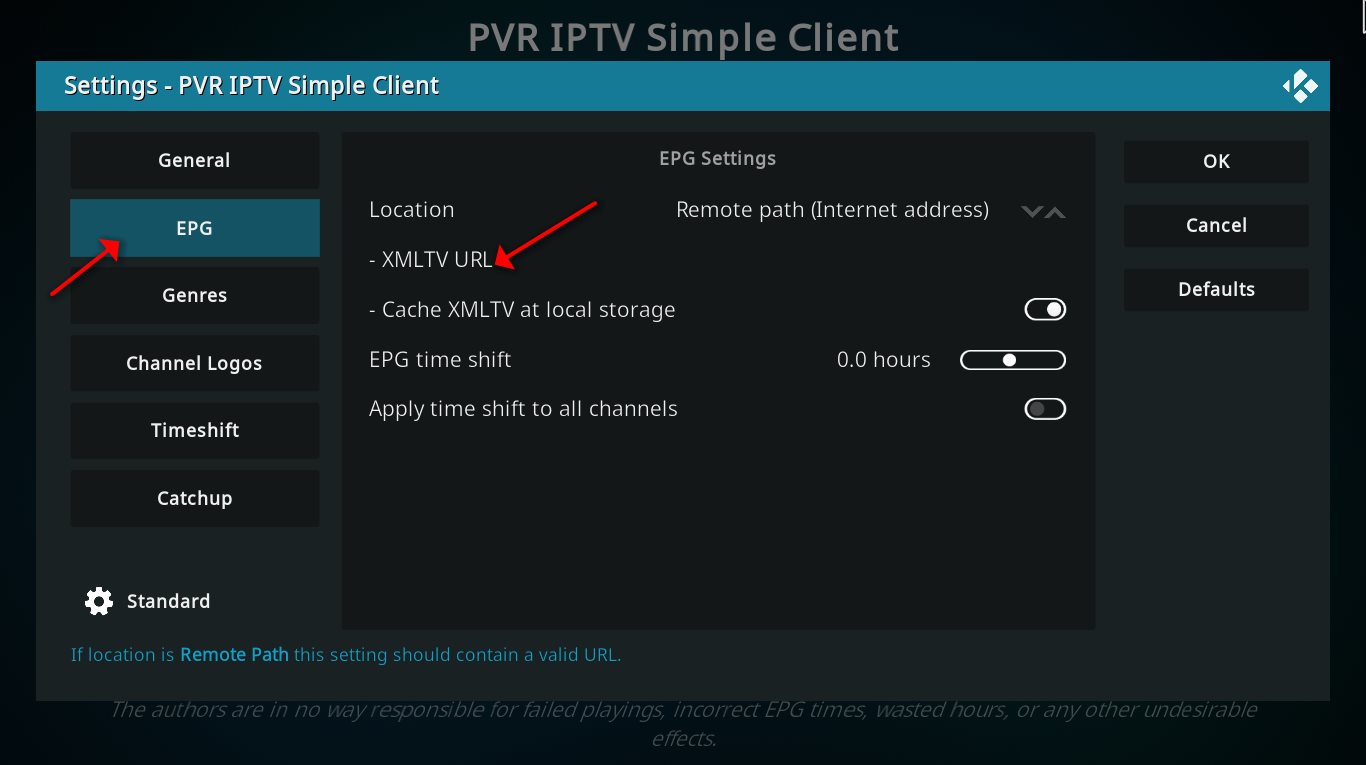
Step 9Now go to “EPG Settings” and click on “XMLTV URL” for EPG. What is EPG?
You can get EPG url from your IPTV provider.
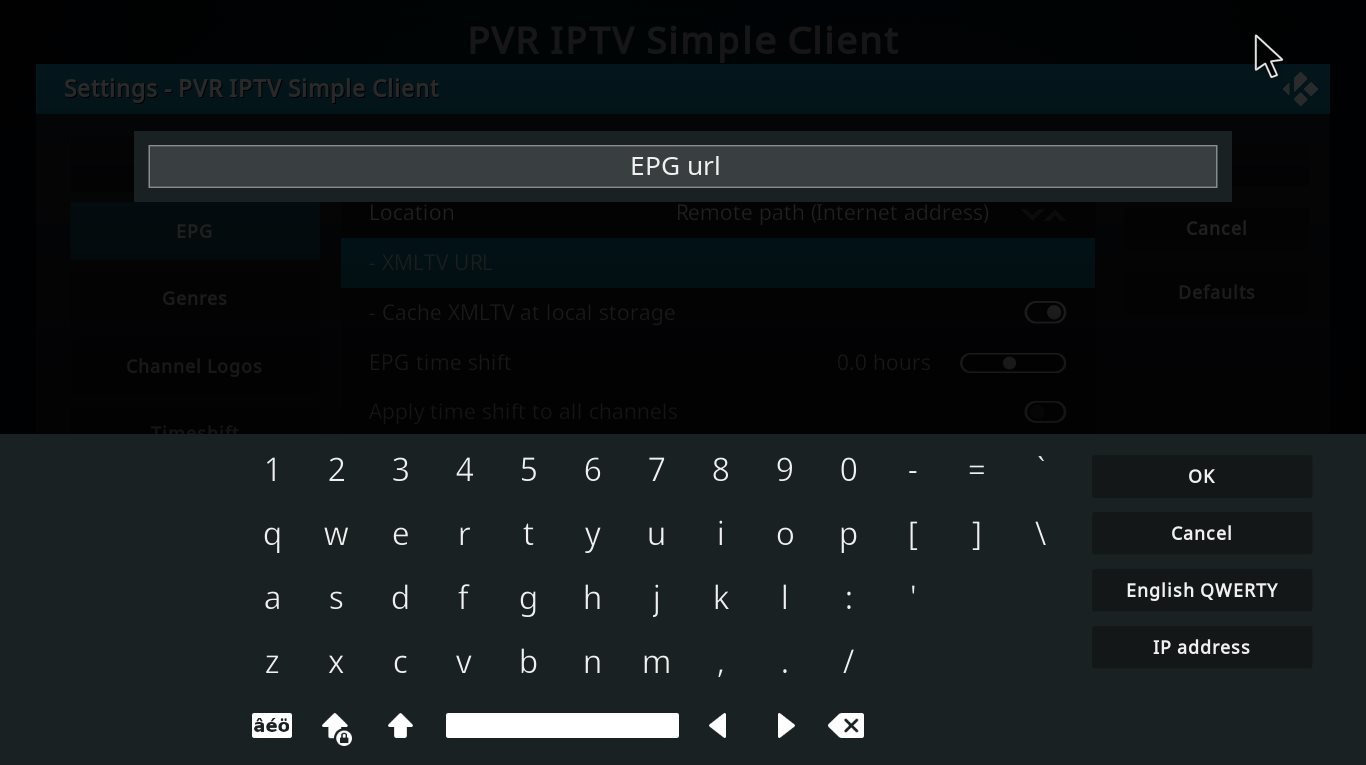
Step 10 Now paste your EPG URL and click “OK“.
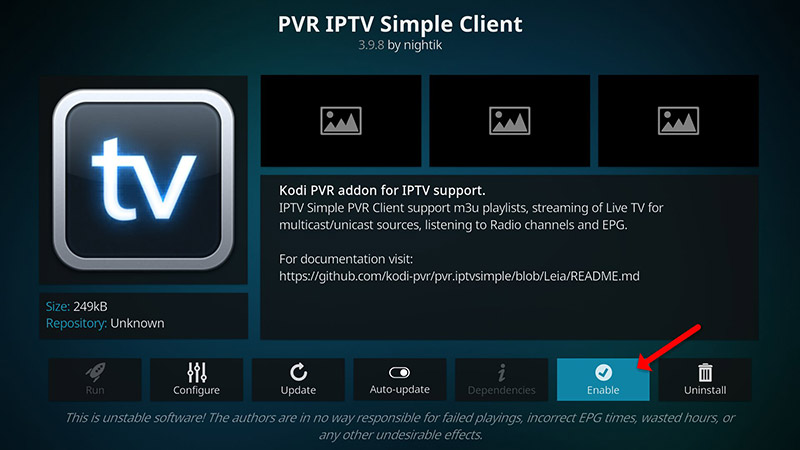
Step 11Click on “Enable“.
Note: After you enable the add-on you will see “Disable”, this means the add-on enabled so do NOT to click on “Disable” again.
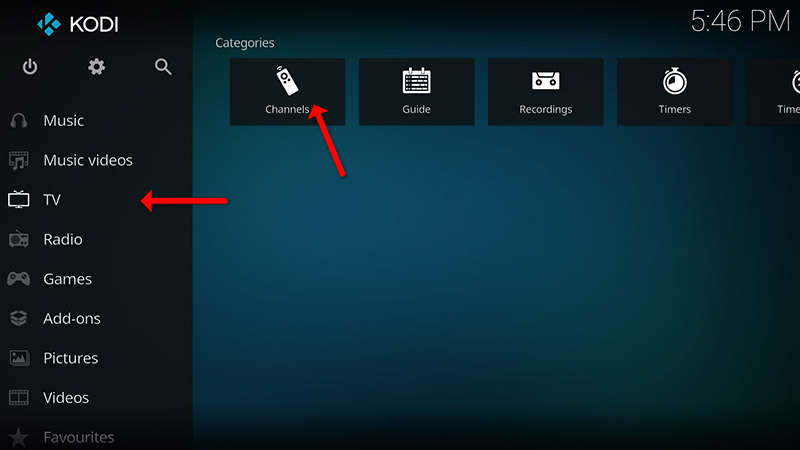
Step 12Head back to “TV” and click on “Channels“.
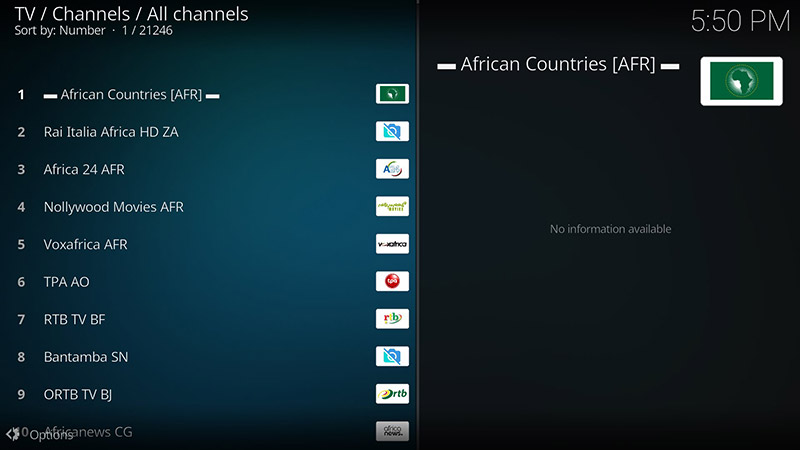
Step 13Wait until you see the notification about updating channels and the installation process is over.
Well done, you have IPTV channels now.
Please do not hesitate to ask your question in the comments if you need any further help.
Did this guide work for you?
Thanks — your feedback helps us keep this guide accurate.