





How to Update or Downgrade MAG Box Firmware (via Internet or USB)
If you’re experiencing issues with your MAG box, updating the firmware to the latest version can often fix many problems. In this guide from iptvhelpcenter.net, we’ll show you two ways to update your MAG box: one via internet (portal) and the other via USB — including steps to downgrade if needed.
🌐 How to Update MAG Box Firmware via Internet
Step 1: Disconnect your MAG box from the internet.
Step 2: Restart (reset) the MAG box.
Step 3: Wait until you see the message “Page Loading Error” on the screen.
Step 4: Plug the internet (LAN) cable back into the device.
Step 5: Choose the Embedded Portal option — your box will begin updating to the latest firmware automatically.
⚠️ If the update doesn’t start automatically:
-
Press the SET button on your remote.
-
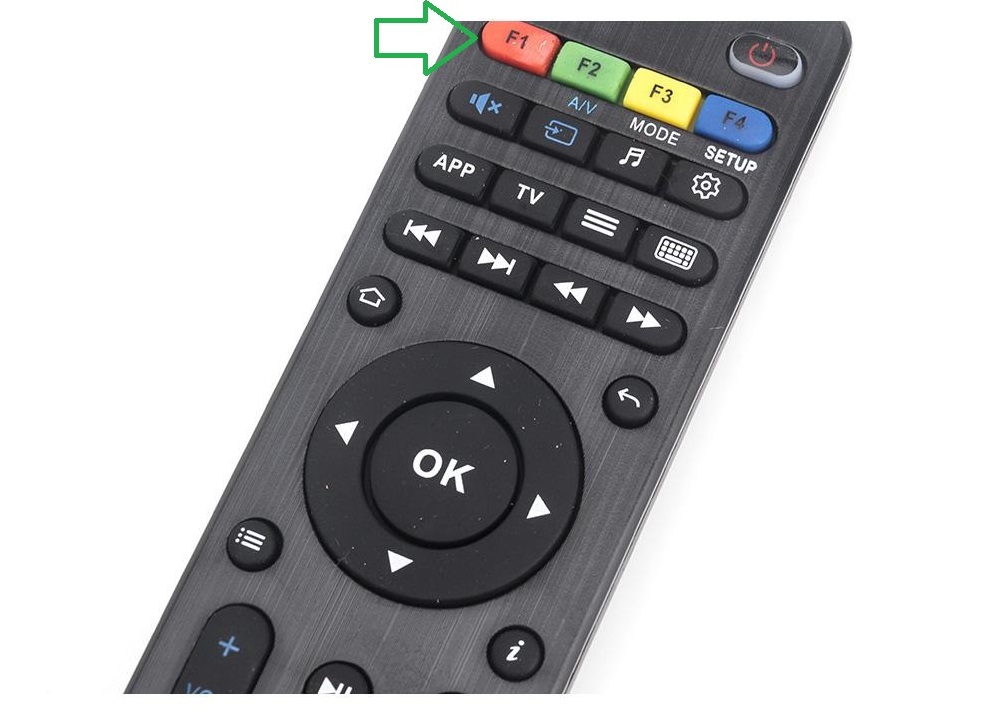
Go to Software Update, press OK, then press the F1 button to trigger the update manually.
Some MAG devices lose saved portal settings after a firmware update. If that happens, you may not be able to re-add your IPTV portal. To fix this, you can manually downgrade or reflash the firmware using a USB drive.
💾 How to Update or Downgrade MAG Firmware via USB
If your MAG box fails to update properly or needs a downgrade, follow these steps to flash the firmware manually using a USB stick.
Step 1: Prepare the USB Drive
Make sure your USB drive is formatted correctly (FAT32 is recommended).
Step 2: Download Firmware
Go to the official Infomir update server and download the correct imageupdate file:
🔗 http://update.infomir.com/mag/<model>/imageupdate
Example for MAG322:
🔗 http://update.infomir.com/mag/322/imageupdate
Step 3: Create Folder Structure
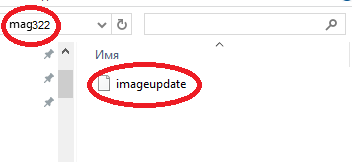
On the root of the USB drive, create a folder named mag<model>
Example: for MAG322, the folder name should be mag322
Place the downloaded imageupdate file inside this folder.
Step 4: Insert USB into MAG Box
Plug the USB into any available USB port on your MAG device (front or back).
Step 5: Start Manual Update
-
Go to Settings > System settings > Software update
-
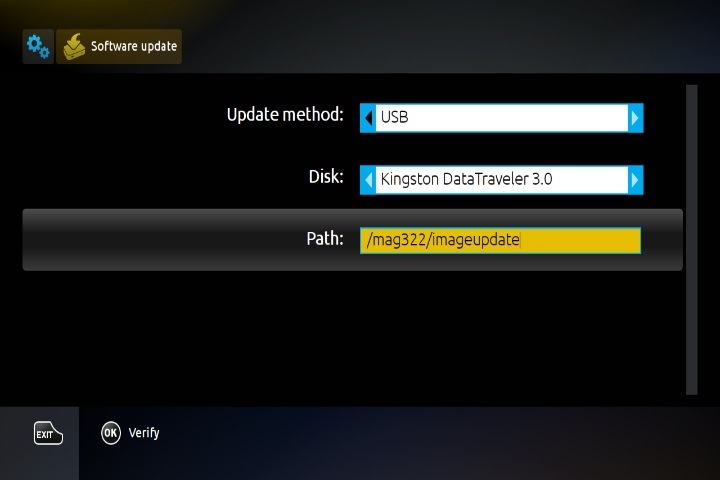
In the update window, set Update Method = USB
You will now see two new fields:
-
Disk – your USB drive name
-
Path – the location of the update file on your USB
Step 6: Verify Update File
Click Verify (OK) to check if your MAG box detects the imageupdate file.
Step 7: Confirm Software Versions
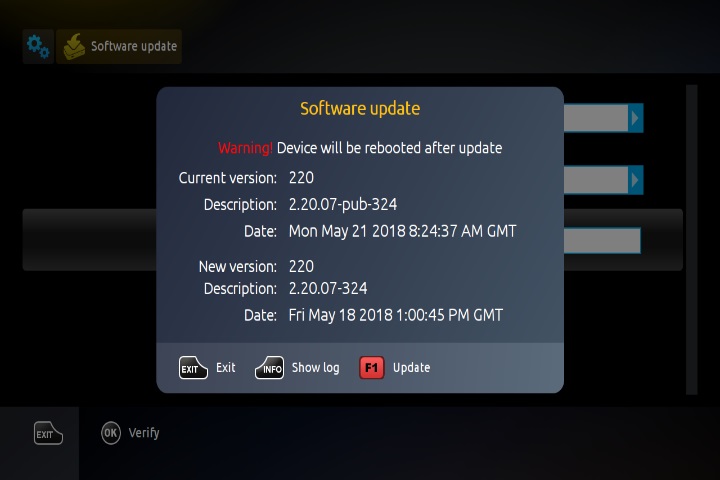
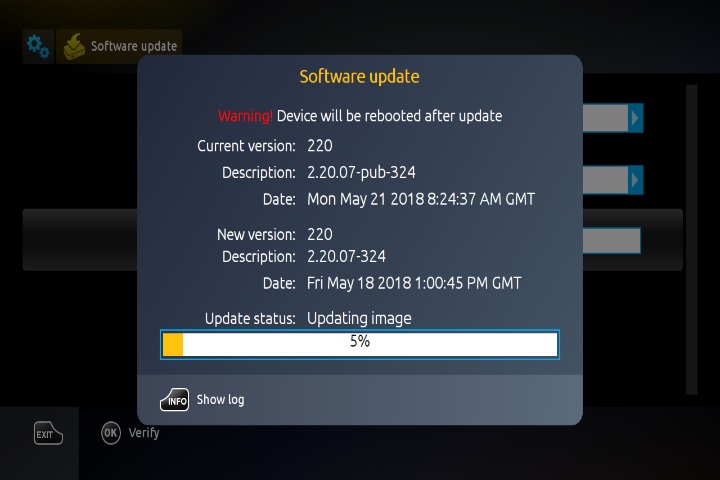
Once detected, a window will display the current firmware version and the new version from USB.
You can now choose to:
-
Exit to cancel
-
Or press Update (F1) to start the update
Step 8: Monitor Progress
A progress bar and status messages will show you the update process. You can press Info on your remote to view detailed logs.
⚠️ Do not power off the device or remove the USB during the update.
Step 9: Finish
Once the update is complete, the device will automatically reboot. Your MAG box is now updated (or downgraded) and ready to use.
Developed by iptvhelpcenter.net
