





ltimate Guide: Controlling KODI Remotely from Your Phone
Why Use Your Phone as a KODI Remote?
Transform your smartphone into a powerful KODI controller with the official Kore Remote app. Perfect for when you’ve misplaced your physical remote or want enhanced functionality!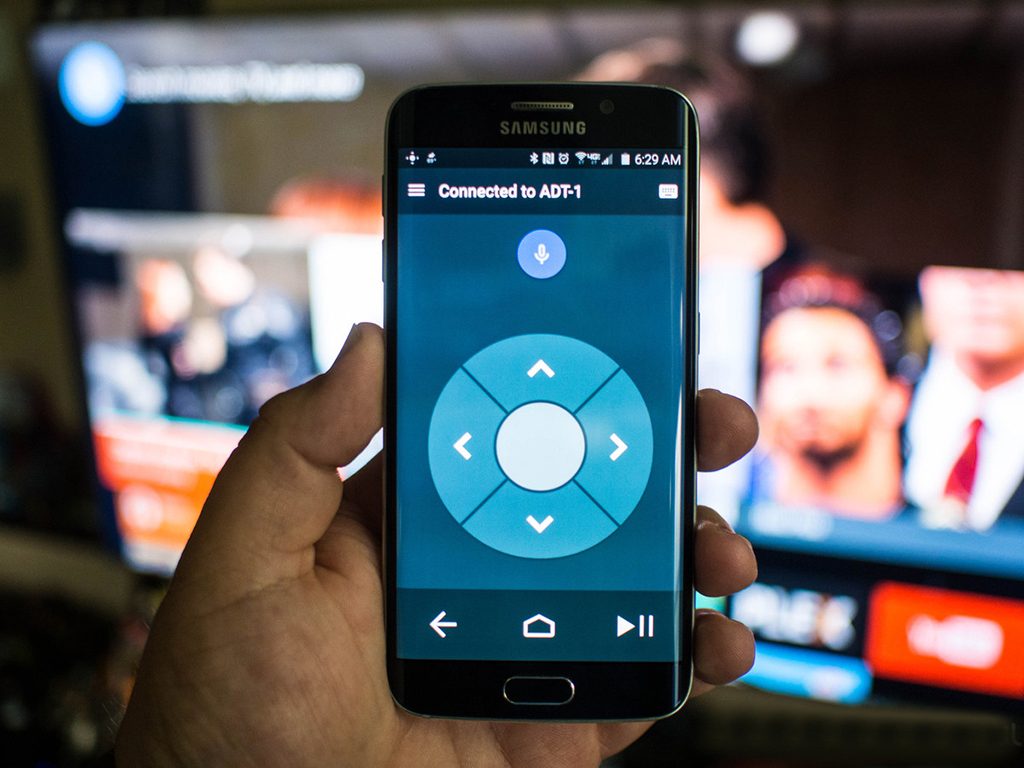
🔑 Key Features of Kore Remote:
-
🖥️ Full media center control from your phone/tablet
-
🎨 Customizable color themes
-
📺 EPG (Electronic Program Guide) integration
-
🎬 Subtitle management (sync/download)
-
🔊 Audio stream switching
-
⏺️ Live TV recording control
-
⚡ Wake-on-LAN support
📲 Installation Guide:
For Android:
-
Open Google Play Store
-
Search for “Kore – Official Kodi Remote”
-
Install and launch the app
For iOS:
-
Visit App Store
-
Download “Official Kodi Remote”
-
Open and configure the app
🔄 Connection Setup:
-
Ensure your phone and KODI device are on the same network
-
Open Kore app → Tap “+” to add new KODI instance
-
Enter your KODI device’s IP address (find in KODI Settings > System Info)
-
Set a friendly name and save
💡 Pro Tips:
-
Use Wake-on-LAN to turn on your media center remotely
-
Create multiple profiles for different KODI installations
-
Enable gesture controls for quick navigation
-
Access your media library directly from the app
💬 We’d love to hear from you! Have questions about KODI remote control or feedback about our guide? Share your thoughts in the comments below! 💡👇
Developed by iptvhelpcenter.net
