





How to Set Up IPTV on Openbox?
Openbox has been a popular and affordable option for many users, especially for those relying on CCCam. However, with the rise of IPTV, Openbox users now have the option to stream IPTV services. Keep in mind, Openbox v8s has moderate RAM and CPU, which may cause the device to crash occasionally while using IPTV.
The WebTV app is the primary IPTV player on Openbox. You can easily import an M3U file using a USB flash drive, which makes setting up IPTV simple. There are two ways to upload the M3U file—through the WebTV app menu or using the Upgrade page under the Tools menu.

Steps to Set Up IPTV on Openbox
Prepare the M3U File: Rename the M3U file to WebTV.m3u for compatibility with WebTV. If the file is named name.m3u, change it to WebTV.m3u.
Add IPTV Channels:
-
-
Connect the USB flash drive containing the WebTV.m3u file to your Openbox.
-
Go to the Menu and navigate to Multimedia.
-
Choose WebTV from the list.
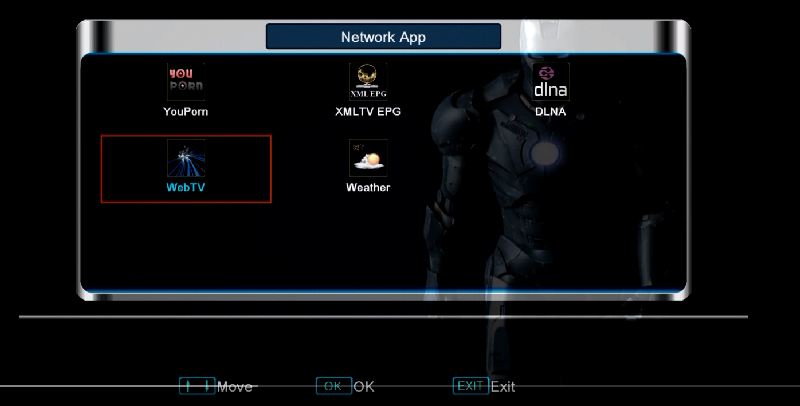
-
-
Clear Existing Channels: If there are existing channels in WebTV, press the green button to Delete All. Then, press the yellow button to Read By USB and the channels will load.

-
If “Read by USB” Option is Missing:
-
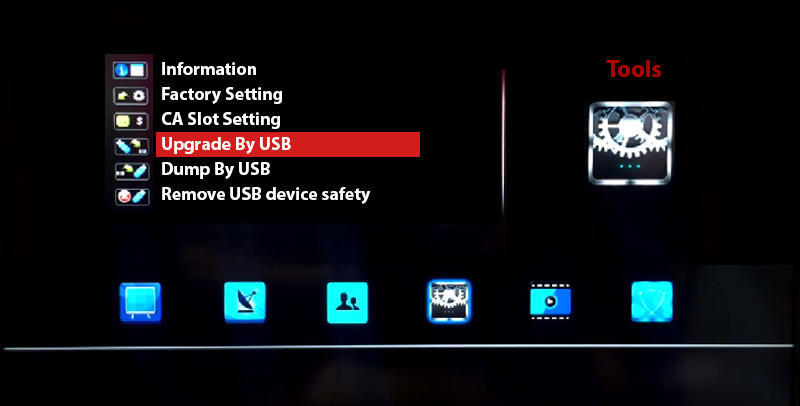
Go to the Main Menu and select Tools.

-
Choose Upgrade By USB.
-
-
-
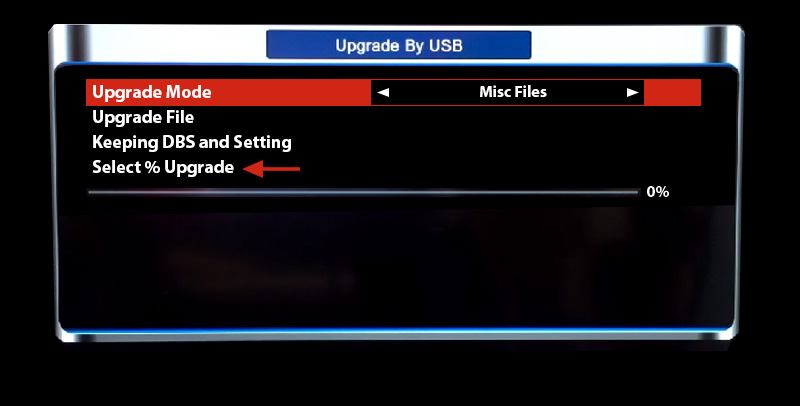
In the next screen, change the Upgrade Mode to Misc Files and select Select & Upgrade. Press OK.
-
-
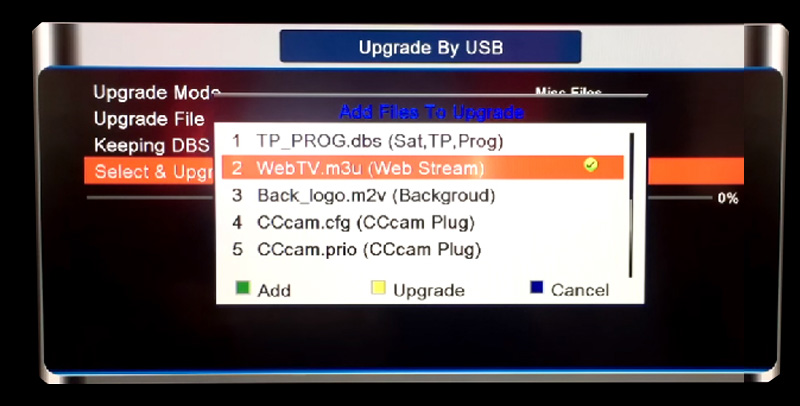
Select the WebTV.m3u File: From the list, select WebTV.m3u (Web Stream) and ensure a green tick appears next to it. Press the yellow button to start the upgrade.
-
Finalize the Setup: Once the upgrade is complete, a message will appear saying “Upgrade Finished. Press Info Key for Result”. Press Exit twice to return to the main menu. Open WebTV under Multimedia, and the channels will now appear.
We’d love to hear from you! If you have any questions about this tutorial or feedback about our website, feel free to share your thoughts in the comments. Your suggestions and opinions help us improve and serve you better. 💬👇
Developed by iptvhelpcenter.net
