





How to Set Up IPTV on Your Smart TV Using Smart STB
Smart STB is an Android app that works on various smart TVs like Samsung, LG, Philips, and more. This app allows you to access IPTV services via a portal, mimicking the features of MAG and Stalker Portal setups. It’s a great alternative for setting up IPTV on your TV without the need for an additional device.
Where to Get Smart STB
The Smart STB app is available on platforms like Google Play, Amazon Web Store, Samsung Tizen, and others. You can download it from their official website:
Smart STB

Activating the Trial Period
-
Download the App
From the app store on your smart TV, search for and install the Smart STB app. -
Find Your MAC Address
To activate the app, you need the software MAC address:-
Go to “Settings” > “Smart STB Settings”


-
Select “Device Info” to find the Software MAC and Virtual MAC addresses.


-
-
Activate the Trial
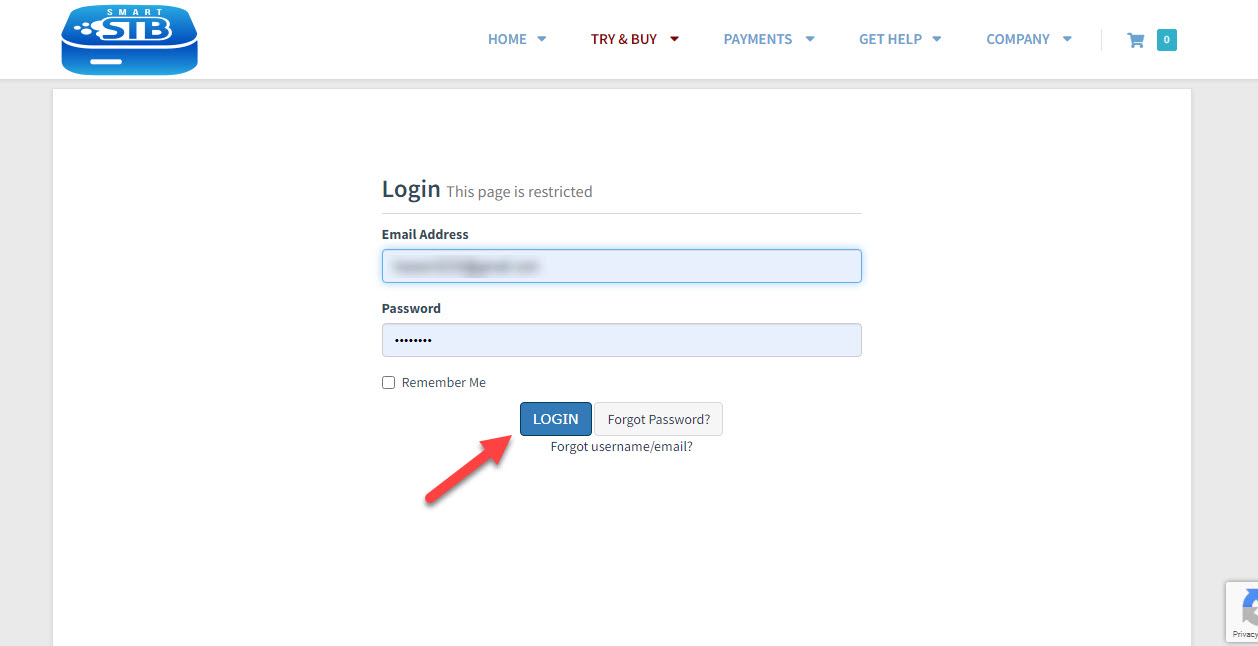
Head to the Smart STB Trial Activation Page.-
Click on “TRY & BUY” > “MY LICENSE”.

-
If you haven’t registered, create an account.
-
Enter your Virtual MAC address and Portal address from your IPTV provider to activate the 7-day free trial.

-
-
Trial Period
Once activated, check the “Device Details” page in the app for your trial period’s start and end date.
Upgrading to a Paid License
-
Log into the Smart STB website
-
Go to “MY LICENSE” > “Active”.

-
Click “Upgrade”.

-
-
Choose a Subscription Plan
Select from monthly or yearly options. For a lifetime plan, the expiration date will show as “Never”.
Adding or Changing Your Portal Address
After activation, you’ll need to enter the portal URL from your IPTV provider.
-
Via the App
-
Go to “Smart STB Settings” > “Portal”.


-
Enter the Name and URL provided by your IPTV provider.

-
Save and restart the portal for the IPTV service to load.
-
-
Via the Website
-
On the Smart STB website, go to “MY LICENSE” > “Active”.


-
Click “Change Portal URL” to update the portal address.


-
Features of Smart STB
-
Categorized live TV and on-demand lists
-
Electronic Program Guide (EPG) support
-
Fast channel buffering
-
Program Icons (Picons)
Now as you can see, the Order Status is set as Active meaning the trial period has started.
We’d love to hear from you! If you have any questions about this tutorial or feedback about our website, feel free to share your thoughts in the comments. Your suggestions and opinions help us improve and serve you better. 💬👇
Developed by: iptvhelpcenter.net
