





How to Set Up IPTV on Smart TV Using Smart STB
Smart STB is an Android app that enables IPTV services on a variety of Smart TVs, including Samsung, LG, and Philips. It works similarly to MAG set-top boxes and supports services via a Stalker Portal. With Smart STB, users can enjoy IPTV streaming just like traditional MAG boxes.
📡 Supported Devices:
-
Samsung Smart TVs
-
LG Smart TVs
-
Philips Smart TVs
-
Android-based Smart TVs
🔽 How to Download and Activate Smart STB:
-
Install the App: Search for the Smart STB app in your Smart TV’s app store (e.g., Samsung Tizen, Google Play).

-
Find Software MAC Address: After installing, go to Settings > Smart STB Settings > Device Info to locate the Software MAC address (for app activation) and Virtual MAC address (for IPTV service activation).


-
Activate Trial Period:
-
Click TRY & BUY > MY LICENSE.

-
Register if you haven’t already, and then enter your Virtual MAC address and Portal URL provided by your IPTV provider.

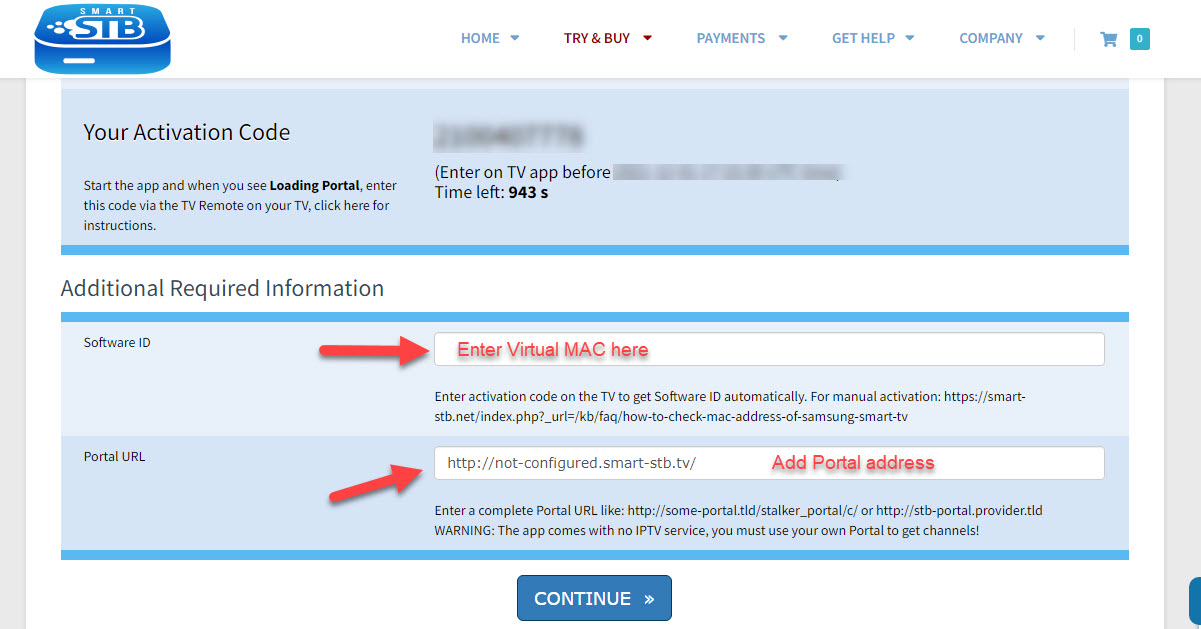
-
After activation, the trial period will begin, and you’ll see the expiry date.

Now choose “Change Portal URL” in the bottom of page.
💳 Upgrading to a Paid License:
To switch to a paid plan:
-
Go to MY LICENSE on the Smart STB website.

-
Click Active and then Upgrade.

-
Choose between monthly or lifetime licenses.
-
After subscribing, your device will show “Paid” status.

🔌 Adding or Changing the Portal Address:
Once activated, add your IPTV provider’s portal address:
-
Directly on the App: Go to Smart STB Settings > Portal, and enter the URL from your IPTV provider.


-
On the Website: Visit the MY LICENSE section, then click Change Portal URL to update your portal address.


📺 Features of Smart STB:
-
Categorized Live TV and On-demand lists
-
Electronic Program Guide (EPG) support
-
Picons (Program Icons) for easier navigation
-
Fast channel buffering for smooth streaming
We hope this guide helps you set up Smart STB on your Smart TV. Feel free to ask any questions or provide feedback in the comments below. 💬👇
Developed by iptvhelpcenter.net
