





How to Record IPTV Streams in VLC
🎥 Why Record with VLC?
VLC Media Player offers powerful recording capabilities for:
-
Live TV shows
-
Sports events
-
News broadcasts
-
Special programs
⚙️ Setup Requirements
✔ Latest VLC version installed
✔ Stable internet connection
✔ Sufficient storage space
✔ IPTV stream URL ready
🔄 Step-by-Step Recording Guide
1️⃣ Open Stream & Enable Controls
-
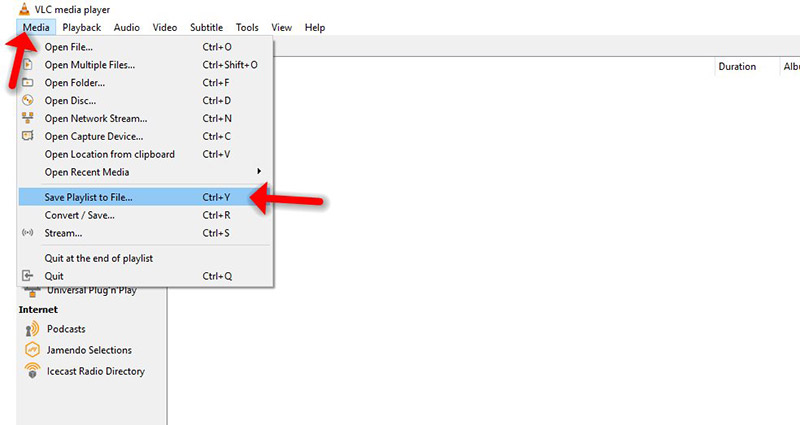
Launch VLC → Media → Open Network Stream
-
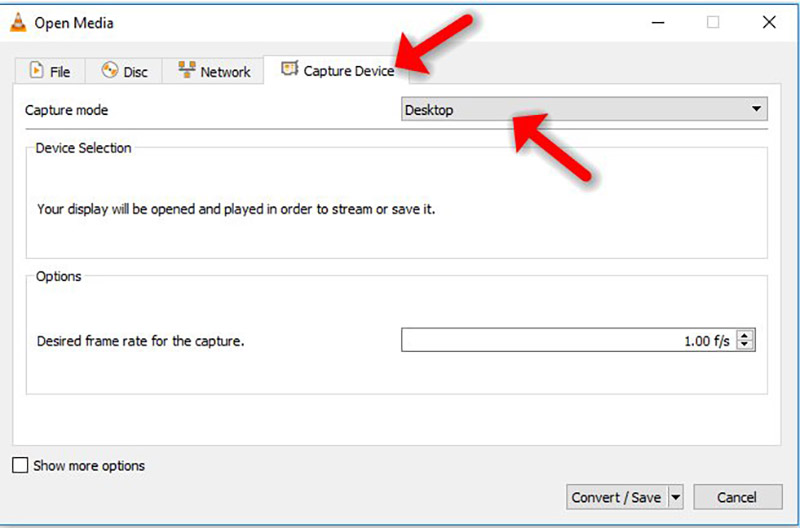
Enter your IPTV stream URL
-
Click Show More Options → Enable Stream Output

-
Click Settings next to Stream Output
![VLC stream settings screenshot]
2️⃣ Configure Recording Settings
-
Check File option
-
Click Browse to select save location
-
Choose recording format (MP4 recommended)
-
Set desired bitrate (default is usually fine)
3️⃣ Start Recording
-
Click Play to begin streaming
-
Immediately click View → Advanced Controls
-
Click red Record button (●) to start capture
-
Click again to stop recording
💡 Pro Tips for Better Recordings
✔ Shortcut: Press Shift+R to start/stop recording
✔ Storage: Use SSD for better performance
✔ Duration: Set maximum recording time in preferences
✔ Quality: Adjust under Tools → Preferences → Input/Codecs
⚠️ Important Considerations
-
Check local copyright laws before recording
-
Some streams may have DRM protection
-
Recording quality depends on source stream
-
VLC may not record encrypted streams
💬 We’d love to hear from you! If you have any questions about IPTV recording or feedback about our website, feel free to share your thoughts in the comments. Your suggestions help us improve. 💬👇
Developed by iptvhelpcenter.net
