





How to Change DNS on IPTV Devices (Step-by-Step Guide)
Changing your DNS settings can improve streaming speed and resolve buffering issues on IPTV devices. This guide covers DNS setup for Smart TVs, Android, iOS, MAG, and more.
💡 Why Change DNS for IPTV?
-
Faster channel loading
-
Reduced buffering
-
Bypass regional restrictions
-
Improved connection stability
⚠️ Important Note:
Before changing DNS, note down your current settings. If set to “Automatic,” revert to it if needed.
📺 How to Change DNS on Different Devices
1️⃣ Samsung Smart TV
-
Menu → Settings → Network → Network Status

-
Select IP Settings → DNS Setting → Enter Manually


-
Input a DNS address (e.g., 1.1.1.1 for Cloudflare)
-
Restart TV
2️⃣ LG Smart TV
-
Settings → All Settings → Network → Network Connection
-
Choose Set Expert → Manual DNS
-
Enter preferred DNS (e.g., 8.8.8.8 for Google)
-
Restart TV
3️⃣ Sony Smart TV
-
Home → Setup → Network → Network Setup

-
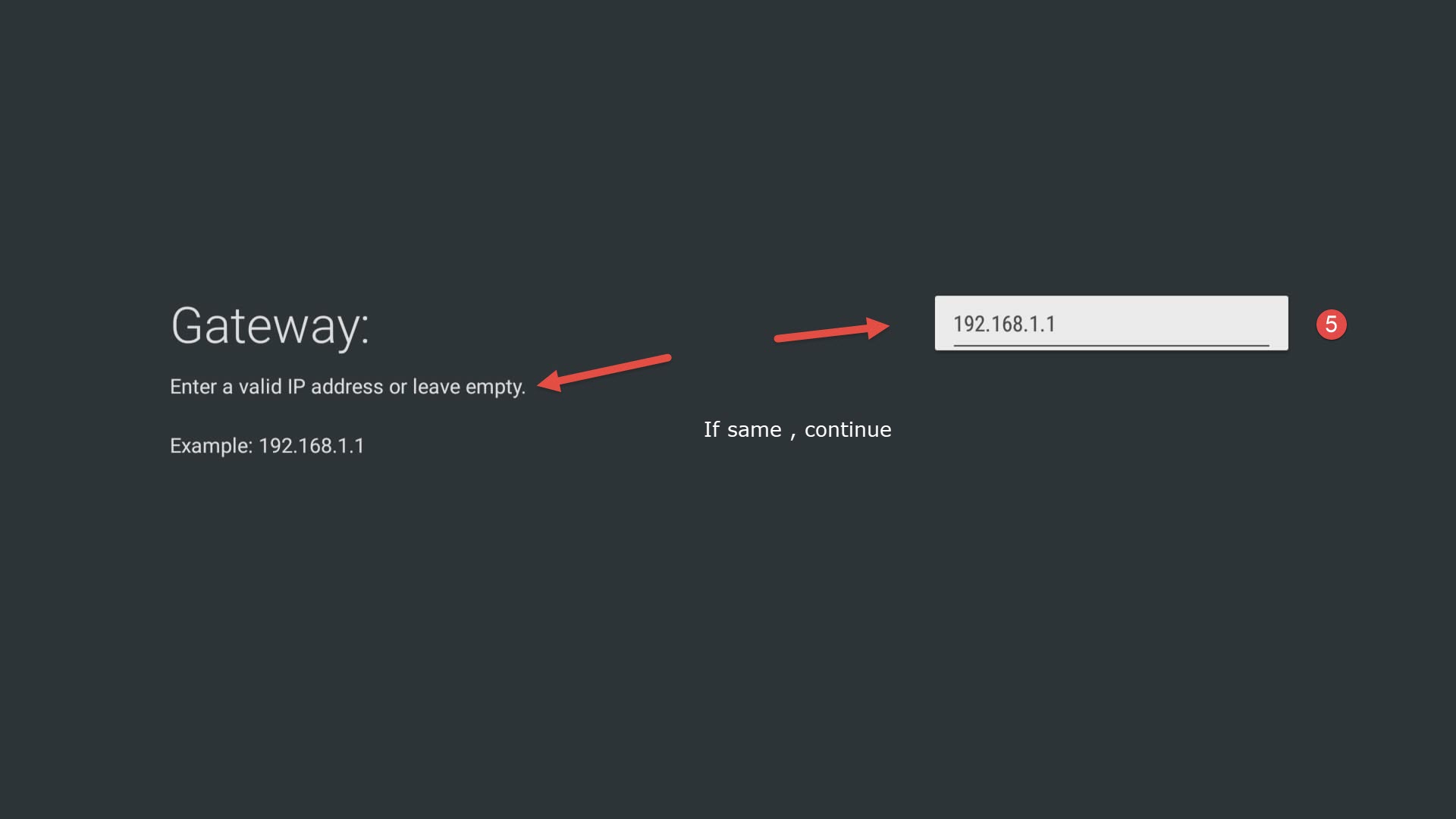
Select Expert → Static IP



-
Enter DNS (e.g., 208.67.222.222 for OpenDNS)


-
Restart TV
4️⃣ Apple TV
-
Settings → Network → Wi-Fi → Configure DNS
-
Choose Manual → Enter DNS (e.g., 001.001.001.001 for Cloudflare)
-
Restart Apple TV


5️⃣ Android/iOS
-
Android:
-
Wi-Fi → Long-press network → Modify → Static IP → Enter DNS
-
-
iPhone/iPad:
-
Wi-Fi → Tap (i) → Configure DNS → Manual
-
6️⃣ MAG Box
-
Settings → System Settings → Network
-
Select Manual DNS → Enter preferred DNS
-
Restart device
🔗 Recommended DNS Servers
| Provider | Primary DNS | Secondary DNS |
|---|---|---|
| Cloudflare | 1.1.1.1 | 1.0.0.1 |
| 8.8.8.8 | 8.8.4.4 | |
| OpenDNS | 208.67.222.222 | 208.67.220.220 |
| DNS Watch | 84.200.69.80 | 84.200.70.40 |
💬 We’d Love to Hear From You!
If you have questions or feedback about this guide, share your thoughts in the comments! Your suggestions help us improve. 💬👇
Developed by iptvhelpcenter.net
