





How to Stream IPTV Channels on PS4 Using Plex
This guide walks you through the process of setting up Plex on your PS4 to stream IPTV channels. Plex is a user-friendly media server that lets you stream content like movies, TV shows, music, and images from your home network to compatible devices. Unlike other media servers, Plex doesn’t require a high level of technical expertise to get started.

What is Plex?
Plex is a powerful media playback system that allows you to store and stream your media content—movies, TV shows, photos, and music—from a central server. The Plex Media Server can be installed on a PC in your home network. Once installed, you can access your media content via various devices such as your PS4, mobile phones, or tablets. The Plex app (referred to as the “Client”) on these devices connects to the server and streams the content.
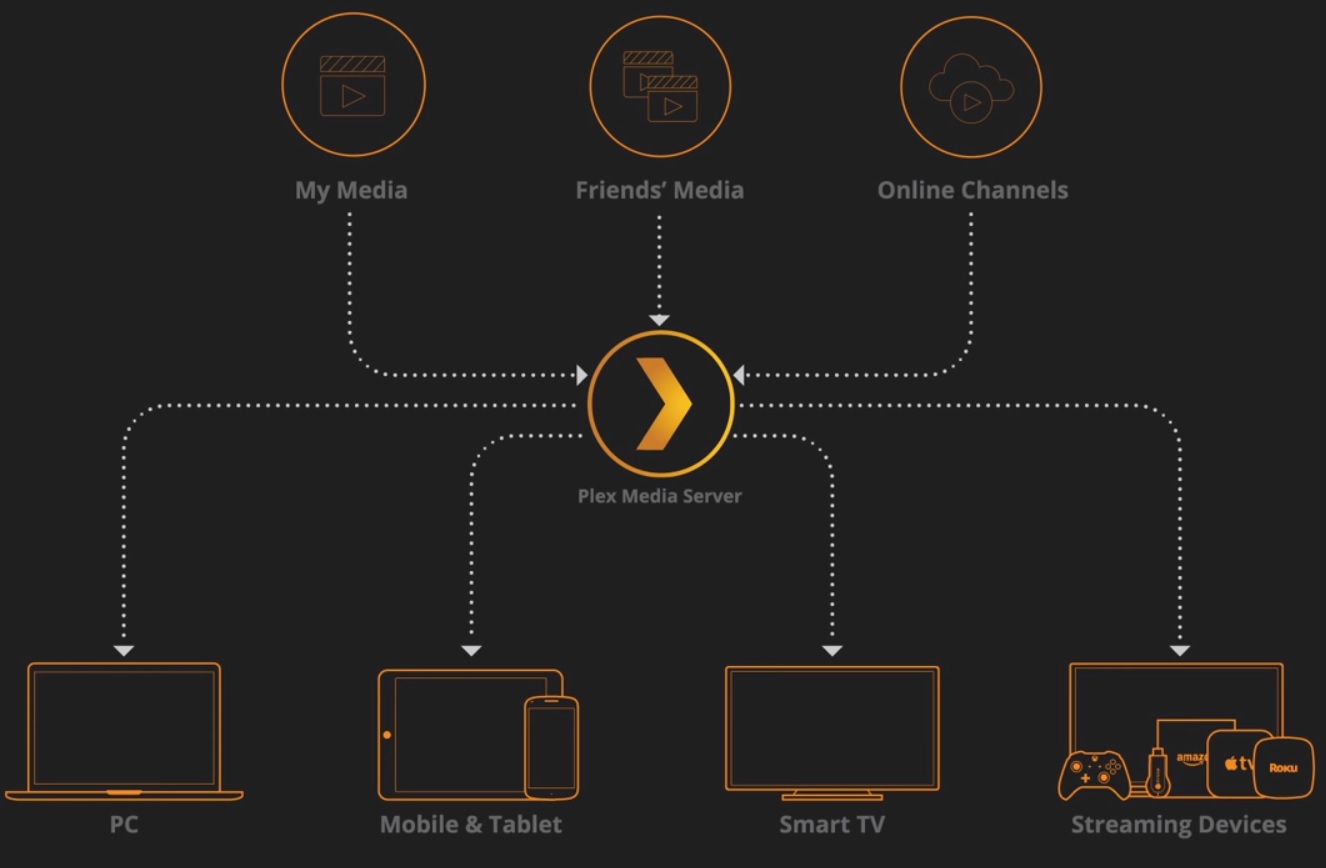
Setting Up Your Plex Media Server
To use Plex, you’ll first need to set up the server on a PC in your home. The server acts as the hub for all your media content. Once the server is running, you can install the Plex app on other devices, like your PS4, to stream content seamlessly. When configured, the Plex server automatically detects and displays your media library.

How to Add IPTV Channels to PS4 with Plex
-
Download Notepad++:
First, download and install Notepad++ for editing configuration files. -
Create a Plex Account:
Visit Plex.tv and create an account. Plex lets you stream media, but for this tutorial, we’ll focus on streaming IPTV on PS4. -
Download Plex Media Server:
Go to the “Downloads” section of Plex and download Plex Media Server.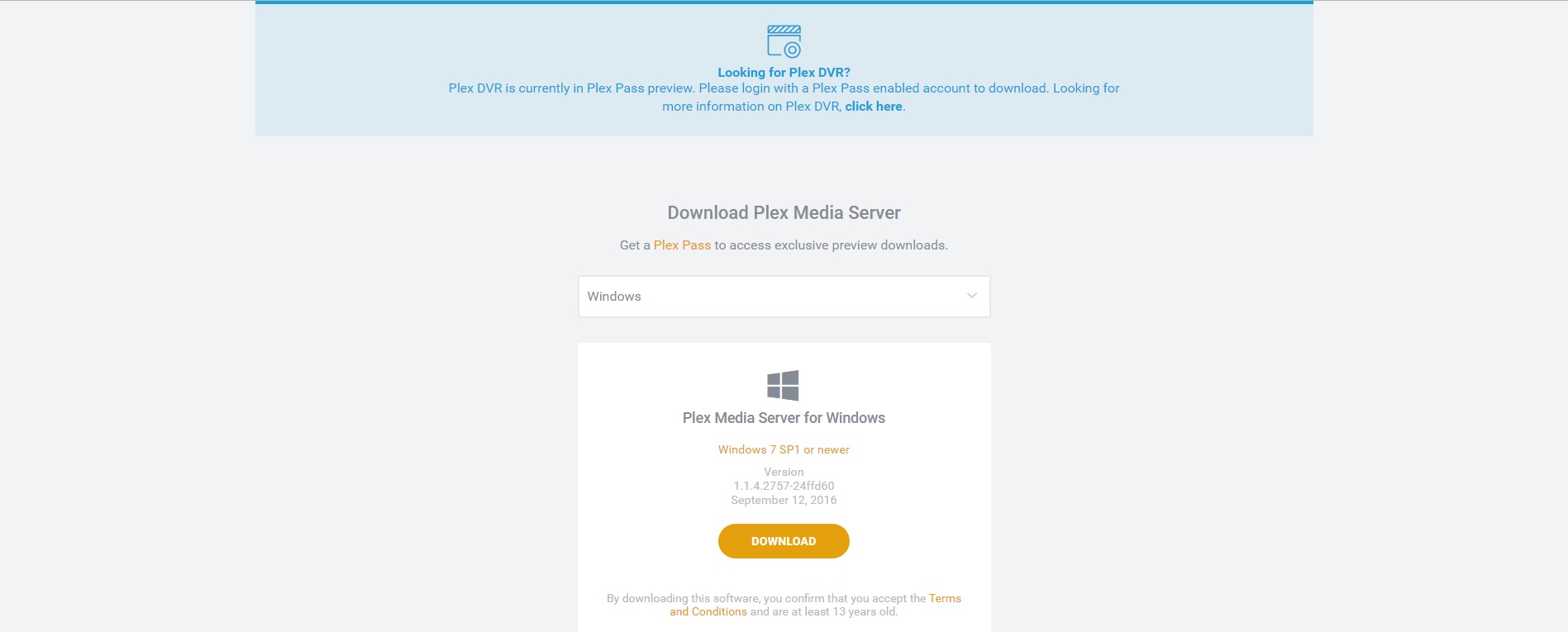
-
Install Plex Media Server:
After downloading, install and launch Plex.
-
Download the IPTV Plugin:
Download the IPTV plugin for Plex from the official link provided in the guide. -
Extract and Move the Plugin Folder:
After extracting the plugin folder, move it to:C: /users/"your computer username"/AppData/Local/Plex Media Server/Plug-ins -
Edit the Plugin Configuration:
Inside the folder, find the file info.plist. Right-click on it and select “Edit with Notepad++”. Remove the line:
<!--<string>UseRealRTMP</string>-->
Then leave:<string>UseRealRTMP</string>
-
Replace M3U Playlist:
In the “Resources” folder, replace the existing M3U playlist with your downloaded one.
-
Rename the Plugin Folder:
Go back to the IPTV.bundle-master folder and rename it to IPTV.bundle. -
Install Plex on PS4:
On your PS4, open the store and search for Plex. Download and launch it.
-
Link Plex on PS4:
On your PS4, open Plex and enter the activation code by visiting plex.tv/link.
-
Start Streaming IPTV Channels:
Once everything is set up, open Plex on both your PC and PS4 to start streaming your IPTV channels.Important Notes:
-
Keep Plex Running: Ensure Plex is open on your PC to stream channels on your PS4.
-
Update Playlist: After updating the M3U playlist, restart Plex on both your PC and PS4.
-
Stream on Other Devices: You can also stream channels on your phone or tablet via the Plex app.
We’d love to hear from you! If you have any questions about this tutorial or feedback about our website, feel free to share your thoughts in the comments. Your suggestions and opinions help us improve and serve you better. 💬👇
Developed by iptvhelpcenter.net
-
