





How to Set Up IPTV on Smart TV Using SS IPTV App
SS IPTV is a versatile, free media player that supports streaming IPTV channels through the internet or local network. The app works with various IPTV operators and supports user-uploaded playlists. It’s compatible with LG, Samsung, Philips, and Sony Smart TVs.
⚡ Supported Devices:
-
LG: Available via LG Smart World.
-
Samsung: Works on D-series models and higher through Samsung Smart Hub.
-
Philips: Access via TV’s browser at app.ss-iptv.com.
-
Sony: Currently in beta-testing, available for models from 2013 and up.
🔽 Steps to Add IPTV Channels to SS IPTV:
-
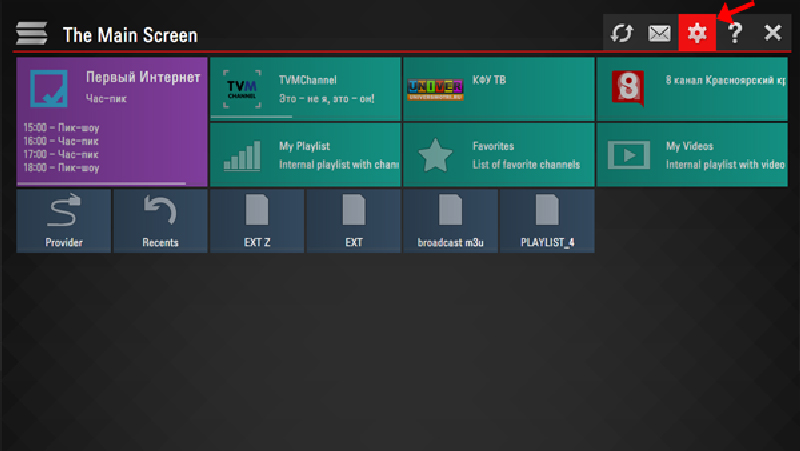
Open Settings: Press the Settings button on the main screen.
-
Upload Playlist:
-
External Playlists: Go to Content > External Playlists, click Add, and enter the title and link for your playlist. Save, and the playlist will appear on the main screen.

-
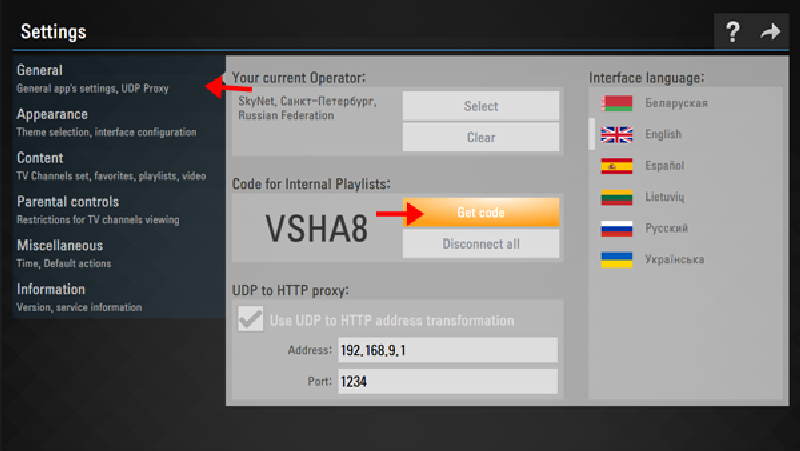
Internal Playlists: For internal playlists (live channels or VoD), go to General Settings and press Get code. Use the 24-hour code at ss-iptv.com to upload your playlist.

-
Save the Playlist: After the playlist is uploaded, it will be available on the main screen under My Playlist.
🔧 Main Features:
-
Easy access to partnered IPTV operators.
-
Supports playlists in formats like m3u, xspf, ASX, and pls.
-
Parental Controls to restrict content.
-
TV Guide with time markers for automatic channel switching.
-
Customizable appearance for better user experience.
We hope this guide helps you set up IPTV on your Smart TV with SS IPTV. Let us know your thoughts or if you have any questions in the comments! 💬👇
Developed by iptvhelpcenter.net
