





How to Set Up IPTV on VLC Media Player: Complete Guide
VLC Media Player is a powerful, free, and open-source tool that supports IPTV streaming across Windows, Mac, Linux, and mobile devices. In this guide, we’ll show you how to set up IPTV on VLC and optimize your streaming experience.

🚀 How to Set Up IPTV on VLC
Step 1: Install VLC Media Player
-
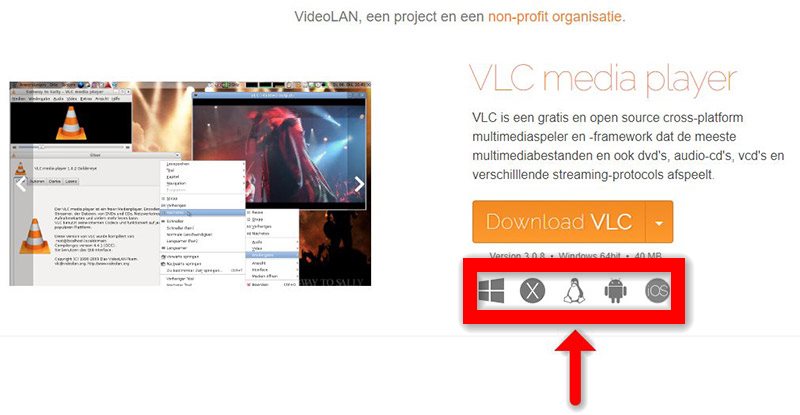
Download VLC from the official website and install it.
Step 2: Open Network Stream
-
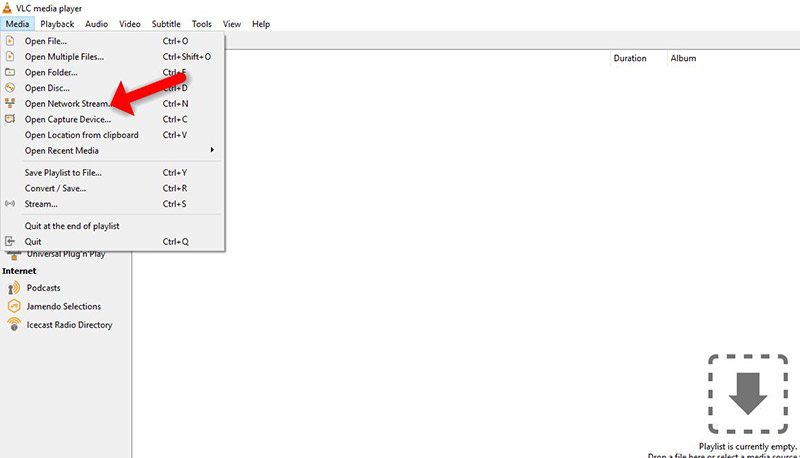
Launch VLC → Click “Media” → Select “Open Network Stream” (or press
Ctrl+N).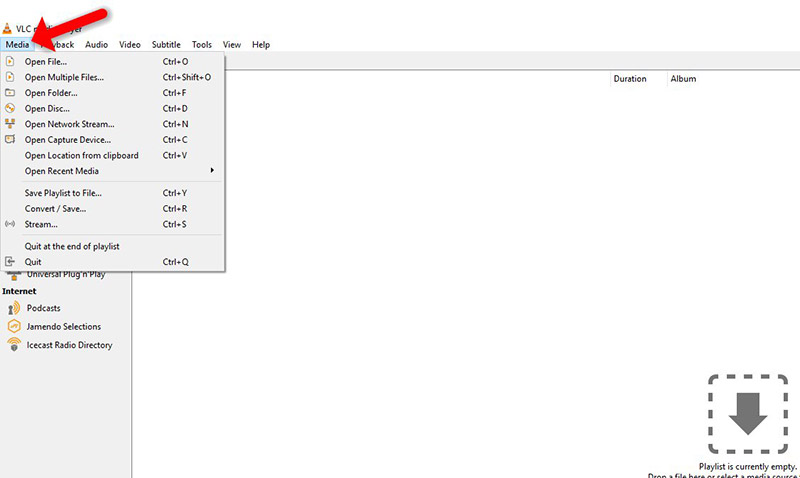
Step 3: Enter Your M3U URL
-
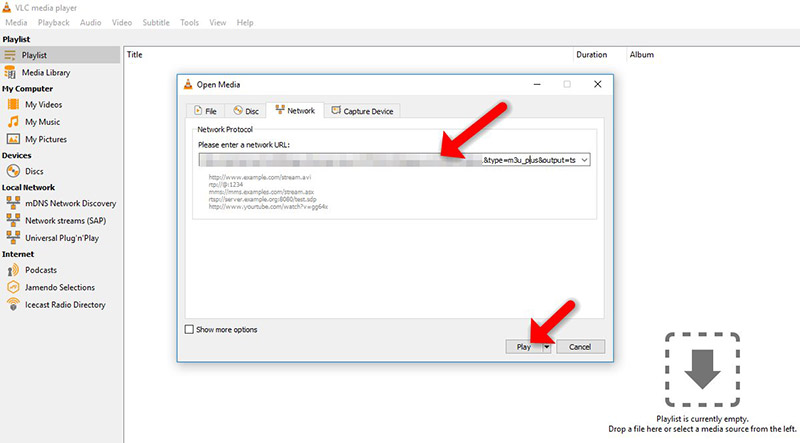
Paste your IPTV M3U playlist URL (provided by your IPTV service).
-
Click “Play” to load channels.
Step 4: Access Your IPTV Playlist
-
Press
Ctrl+Lto view the full channel list.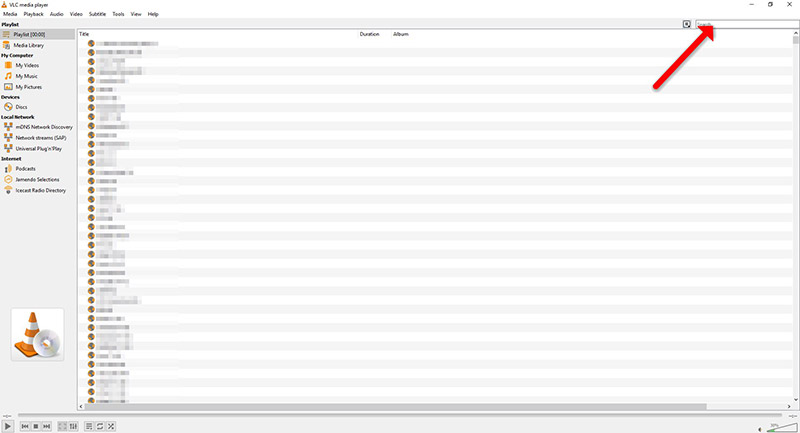
-
Select any channel to start streaming!
🌟 Optimizing VLC for IPTV
✔ Reduce Buffering: Go to Tools > Preferences > Input/Codecs → Increase “Network Caching” to 1000ms.
✔ Change Audio Track: Right-click → Audio > Audio Track → Select preferred language.
✔ Record Live TV: Click “View” > Advanced Controls” → Use the record button during playback.
🔧 Pro Tip:
-
Use “Media > Open Multiple Files” to add multiple playlists.
-
Enable “Hardware Decoding” (in Preferences) for smoother playback.
💬 We’d love to hear from you! Have questions or feedback? Share your thoughts below! Your input helps us improve. 💬👇
Developed by iptvhelpcenter.net
