





How to Set Up IPTV on Xbox One Using Kodi: A Step-by-Step Guide
Kodi, one of the most popular media center apps, now supports Xbox One, allowing users to stream IPTV channels seamlessly. With its powerful add-ons, Kodi can turn your Xbox into a full-fledged IPTV and DVR system. Follow this guide to set it up easily!
🛠 How to Install & Configure IPTV on Xbox One
via Kodi
Step 1: Install Kodi on Xbox One
-
Turn on your Xbox One and ensure it’s connected to the internet.
-
Go to the Xbox Store and search for Kodi.
-
Click “Get” to download and install it.
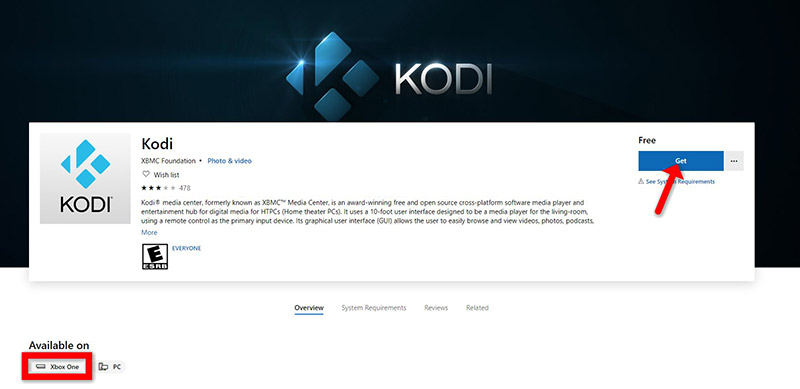
Step 2: Set Up PVR IPTV Simple Client
-
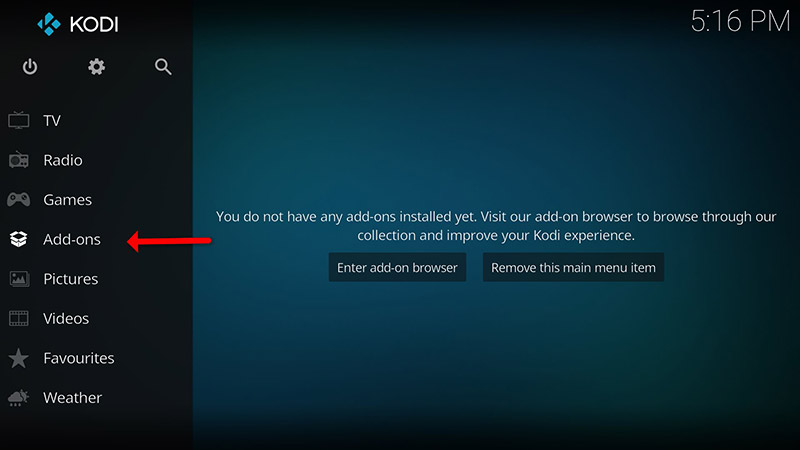
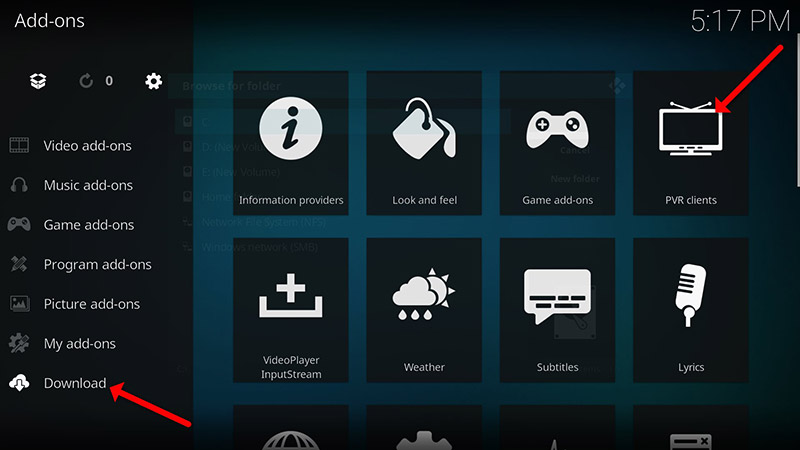
Open Kodi → Navigate to “Add-ons” → “Download”.
-
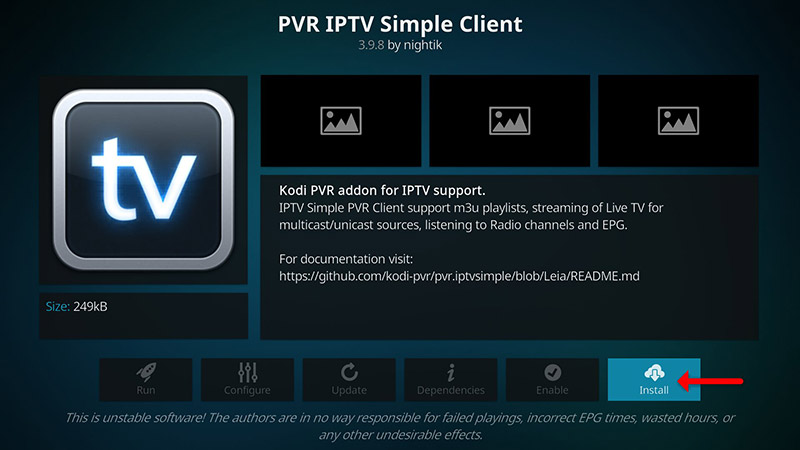
Select “PVR Clients” → Install “PVR IPTV Simple Client”.
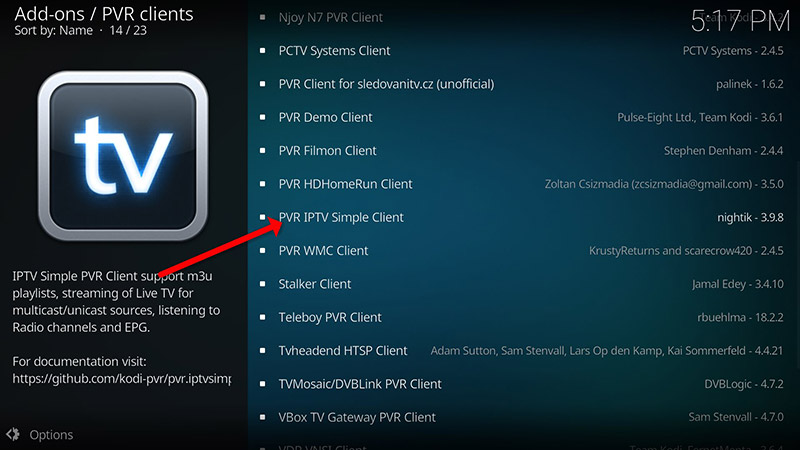
-
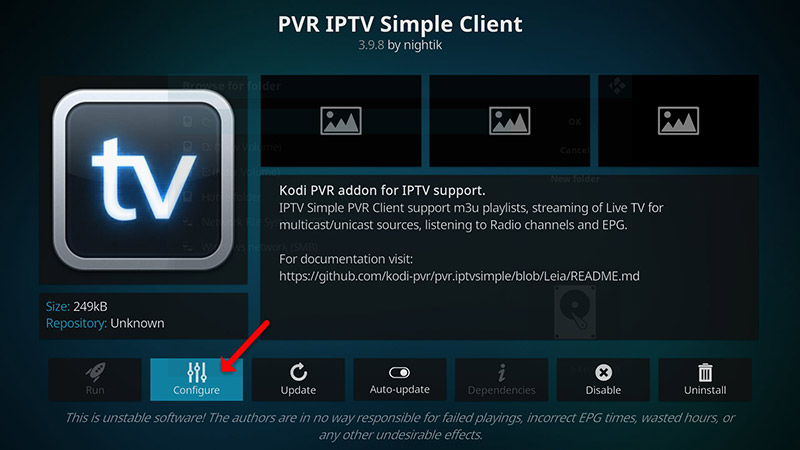
Go to “My Add-ons” → “PVR Clients” → Run the add-on.
Step 3: Configure M3U Playlist
-
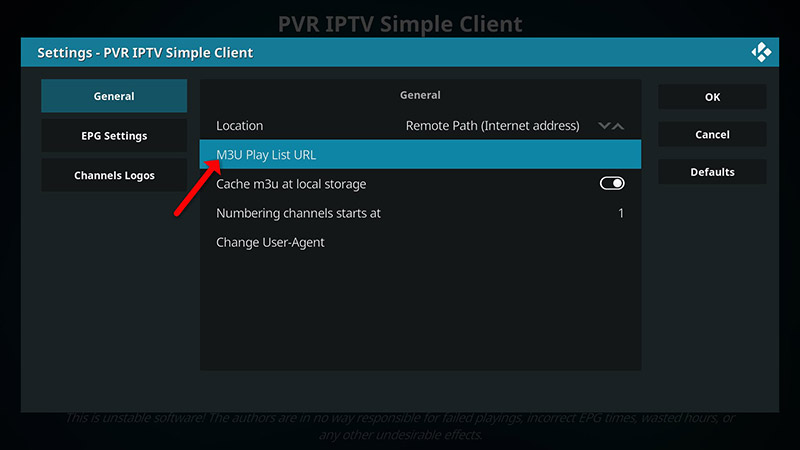
Click “Configure” → Select “M3U Playlist URL”.
-
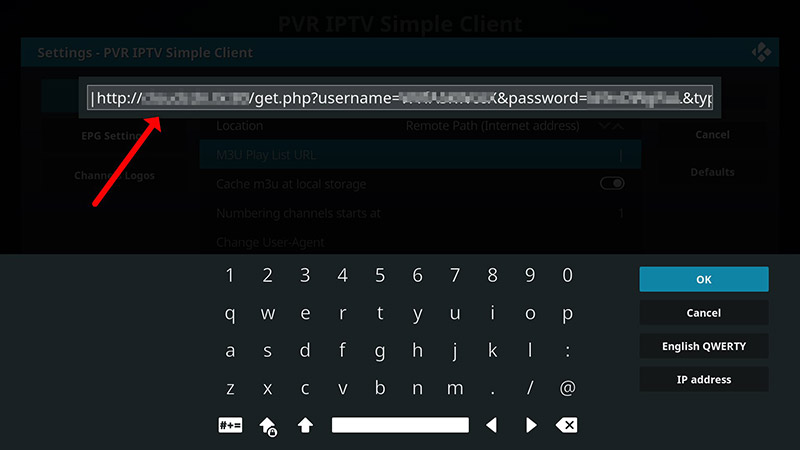
Enter the M3U URL provided by your IPTV provider and click “OK”.
Step 4: Add EPG (Electronic Program Guide)
-
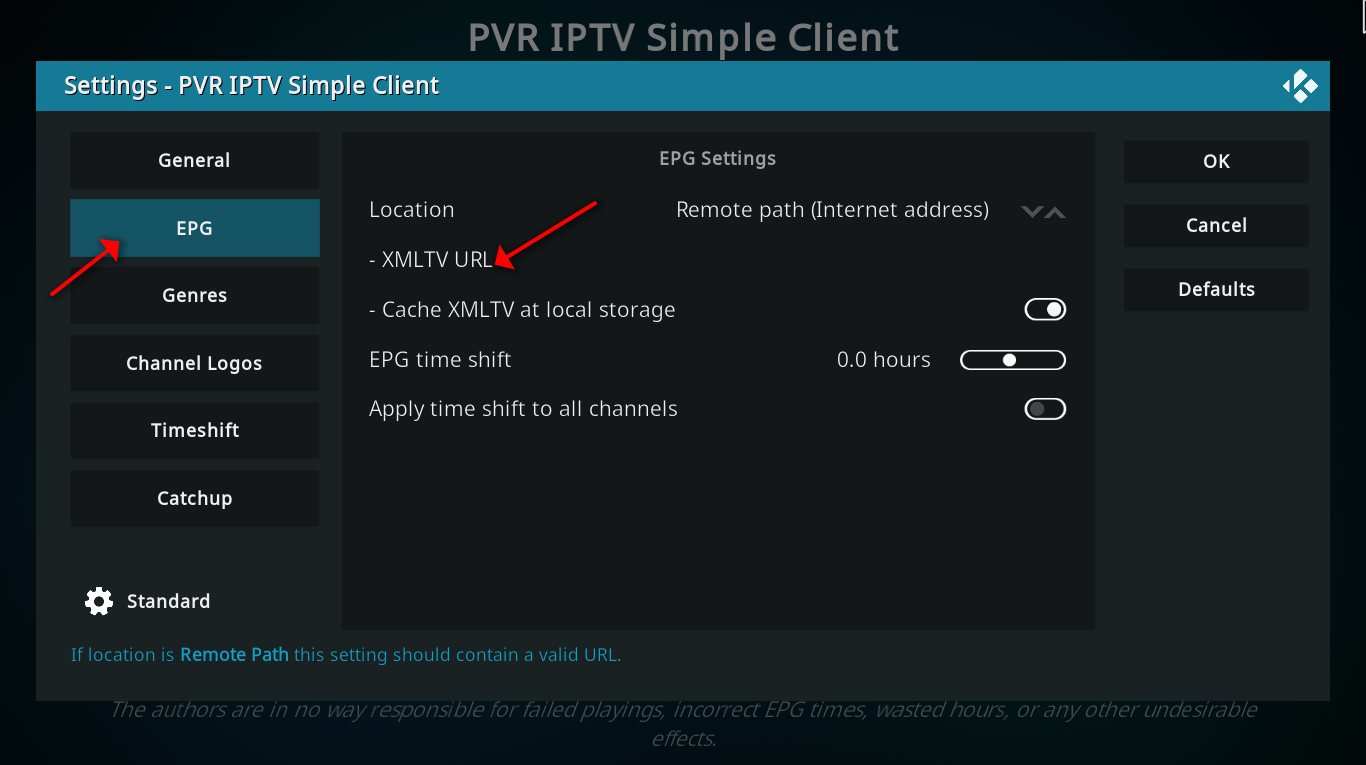
Go to “EPG Settings” → Click “XMLTV URL”.
-
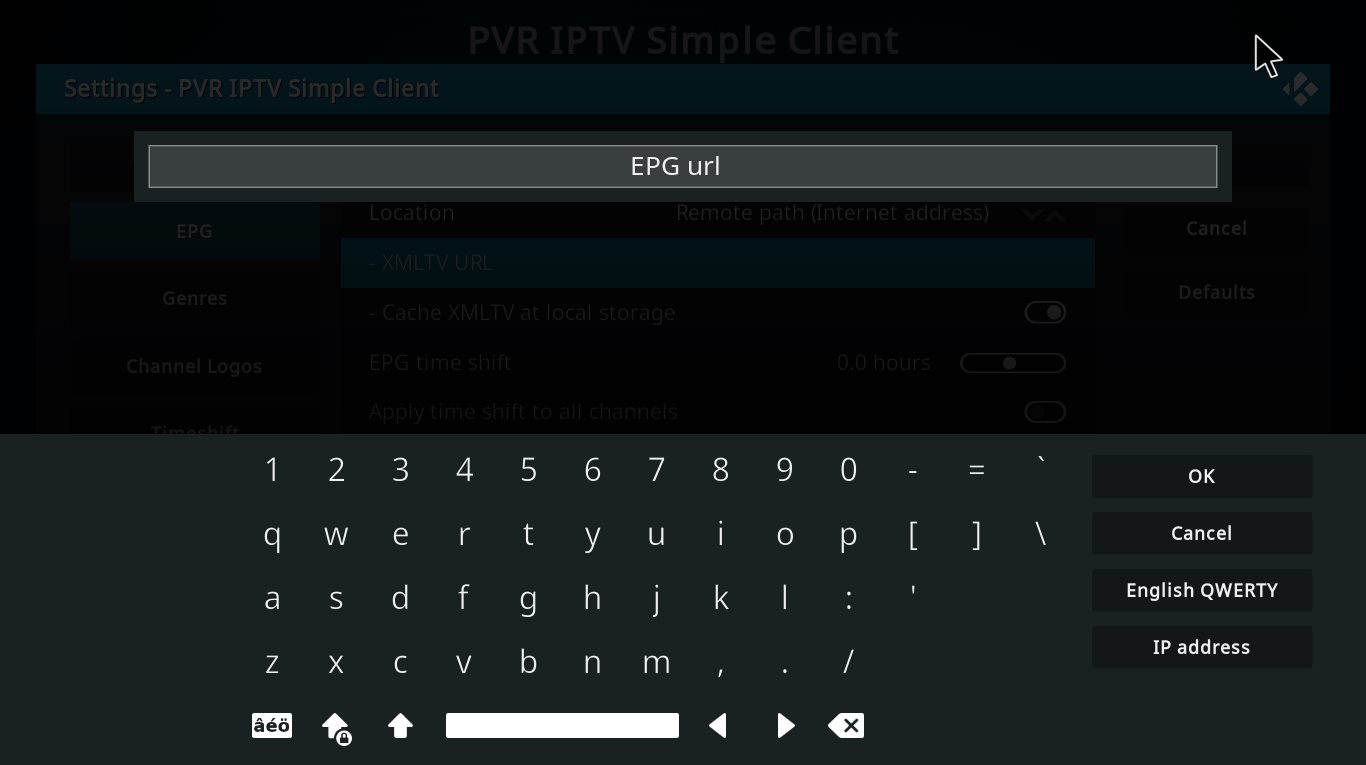
Paste your EPG URL (from your provider) → Click “OK”.
-
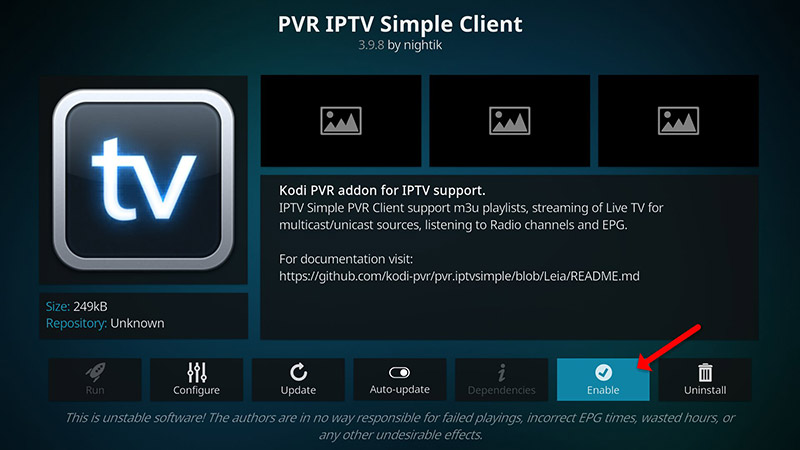
Enable the add-on (Do NOT disable it afterward).
Step 5: Access IPTV Channels
-
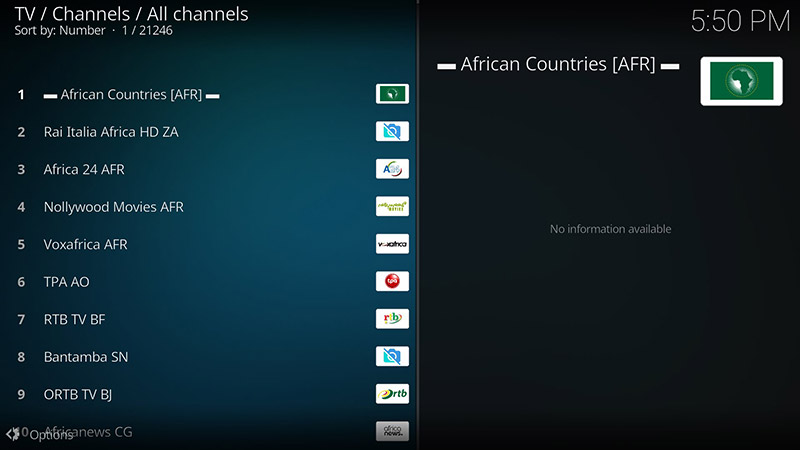
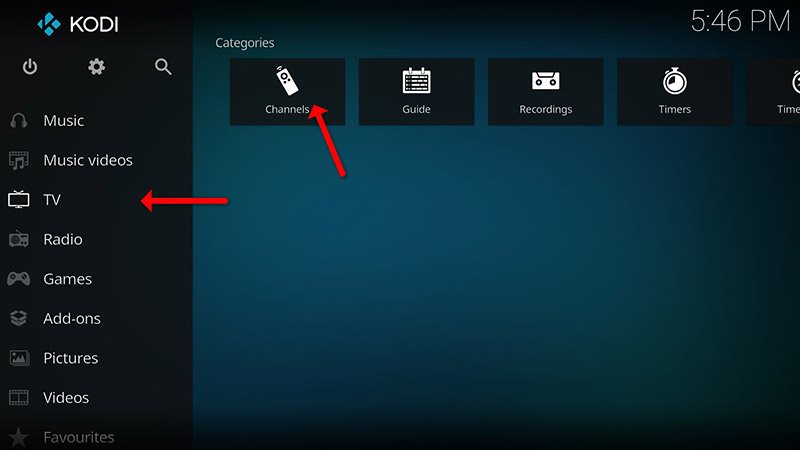 Return to “TV” → “Channels”.
 -
Wait for the channels to load—Enjoy your IPTV!
💬 We’d love to hear from you! If you have any questions about this tutorial or feedback about our website, feel free to share your thoughts in the comments. Your suggestions and opinions help us improve and serve you better. 💬👇
Developed by iptvhelpcenter.net
