





How to Set Up IPTV on Kodi via Stalker Client
Kodi is a free, open-source media player that functions as a powerful media center. Available on platforms like Android, Windows, and many devices such as Amazon FireTV, Apple TV, Xbox, and more, Kodi lets you play media, stream, and cast content between various devices.
However, Stalker Client—a Kodi add-on used to watch IPTV—is not an official application, and it may have security risks, as some malicious users may exploit it to steal IPTV details. Always ensure you’re using trusted sources.

Steps to Set Up IPTV via Stalker Client on Kodi
Step 1: Download Kodi
Visit the official Kodi website and select your operating system. For this guide, we’re using Windows, but the process is similar across platforms.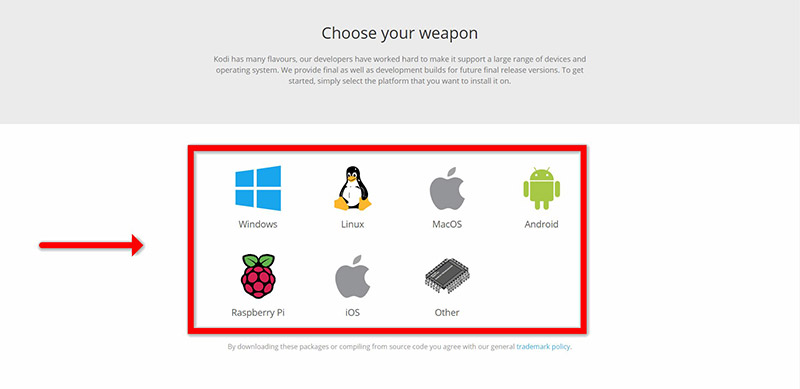
Step 2: Install Kodi
Choose between 64-bit or 32-bit depending on your system. Install Kodi and open it.
Step 3: Open Add-ons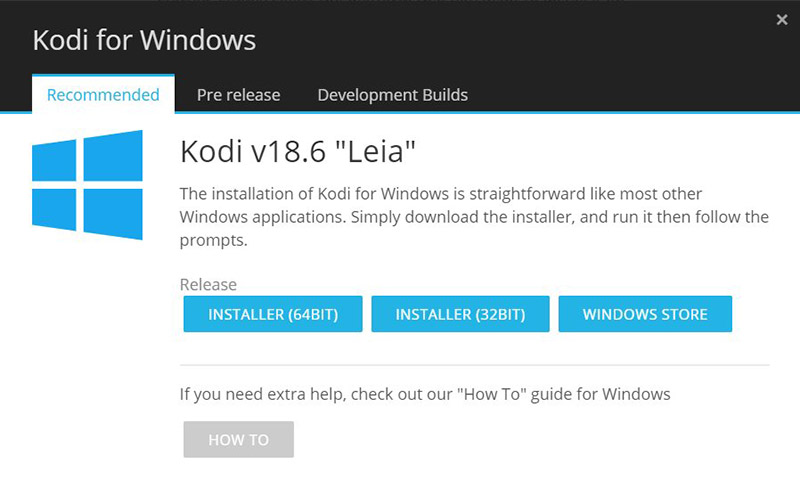
Click on Add-ons in the Kodi menu.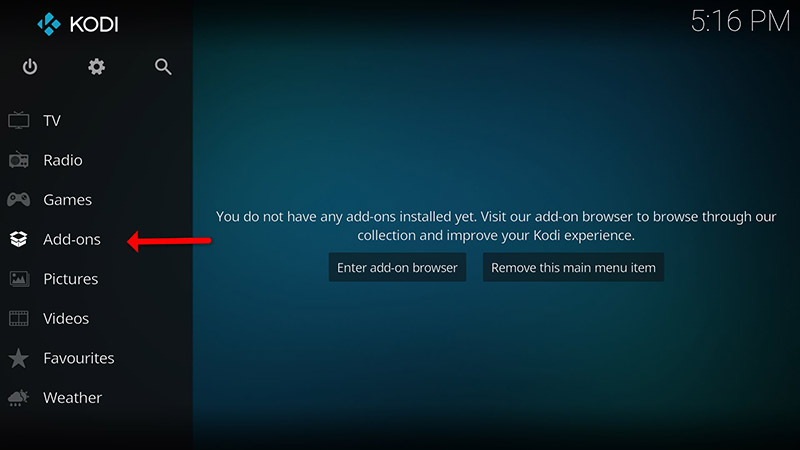
Step 4: Download PVR Clients
Click Download, then select PVR Clients from the list.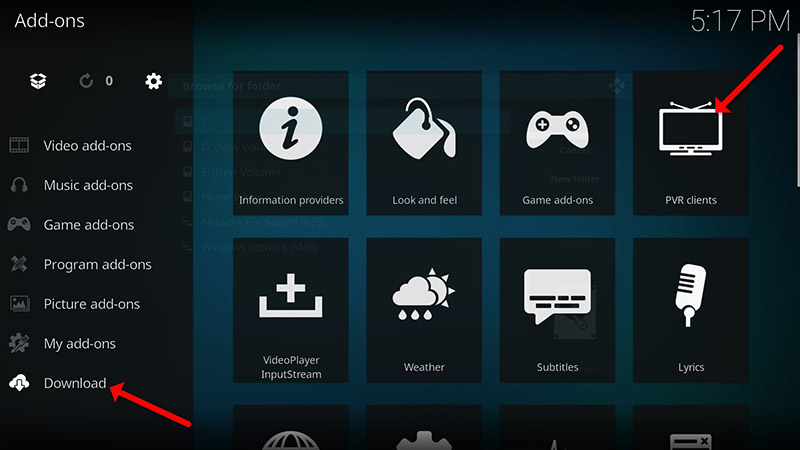
Step 5: Install Stalker Client
Choose Stalker Client from the list and click Install.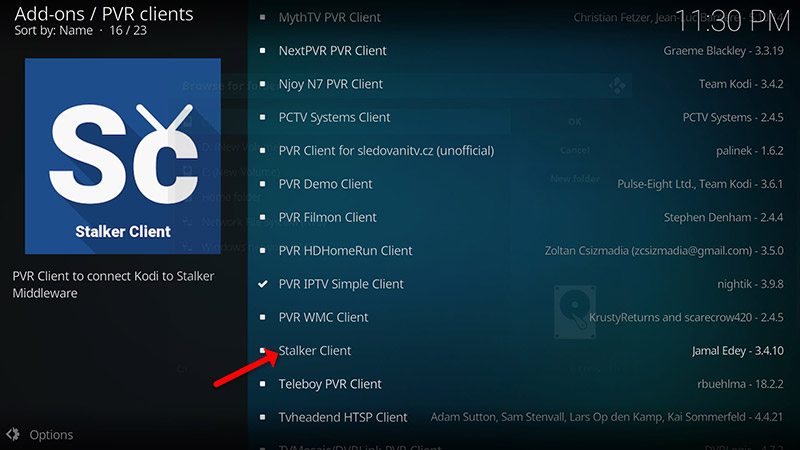
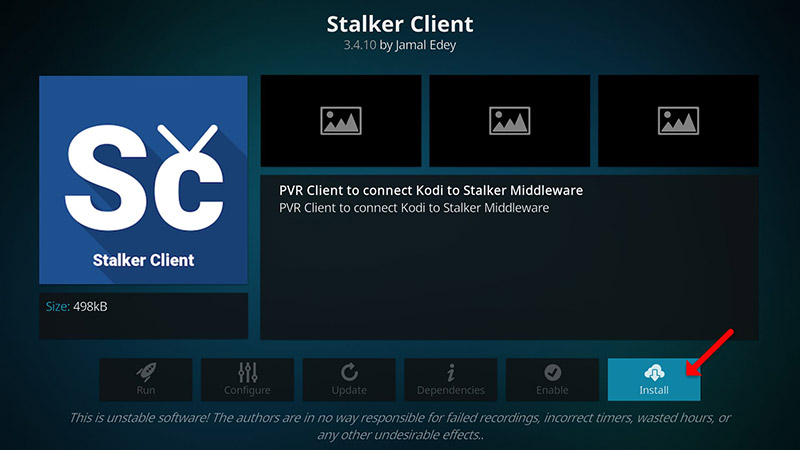
Step 6: Configure the Add-on
Go to My Add-ons > PVR Clients, select Stalker Client, and click Configure.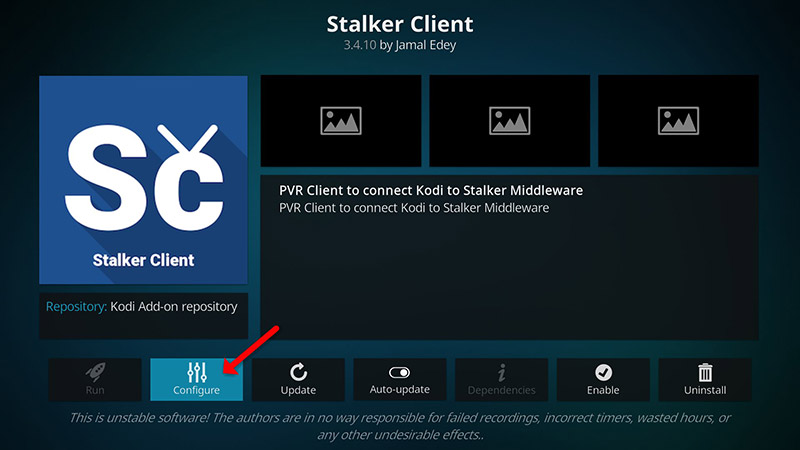
Step 7: Add Portal and Server Address
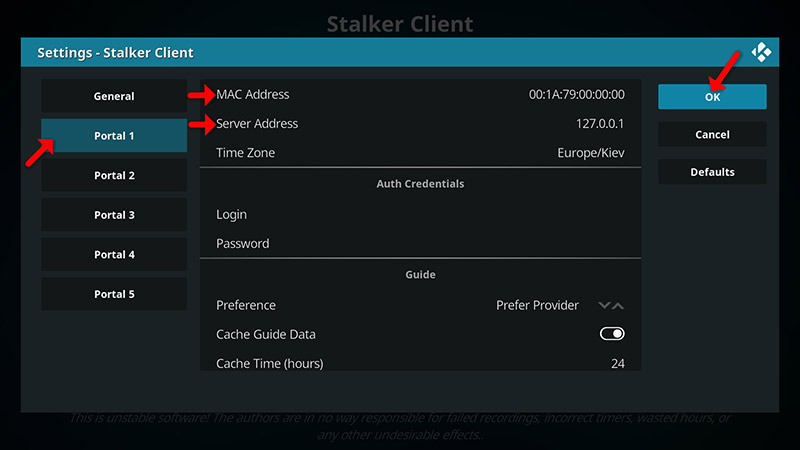
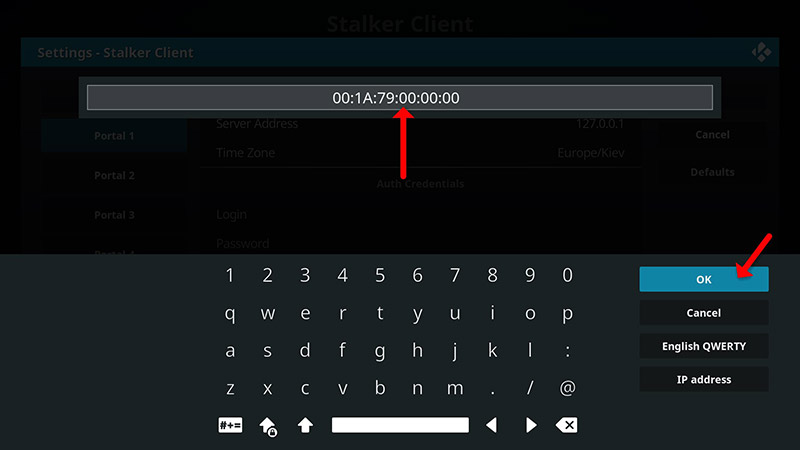
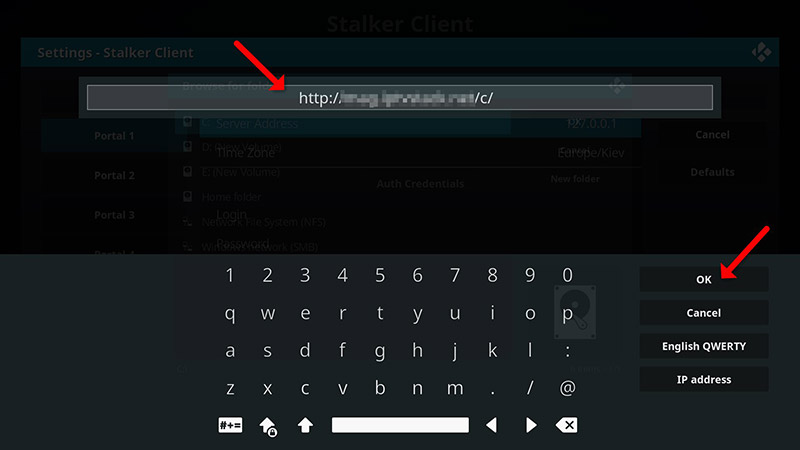
Select Portal 1 and enter the Server address and MAC address provided by your IPTV provider. After entering this information, click OK.
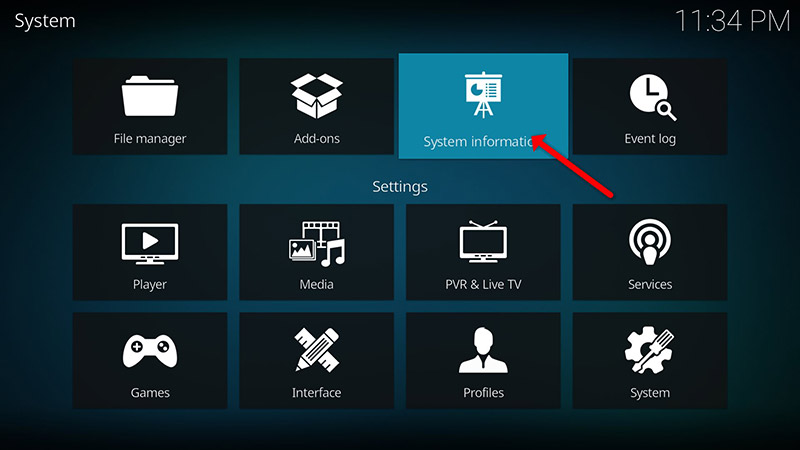
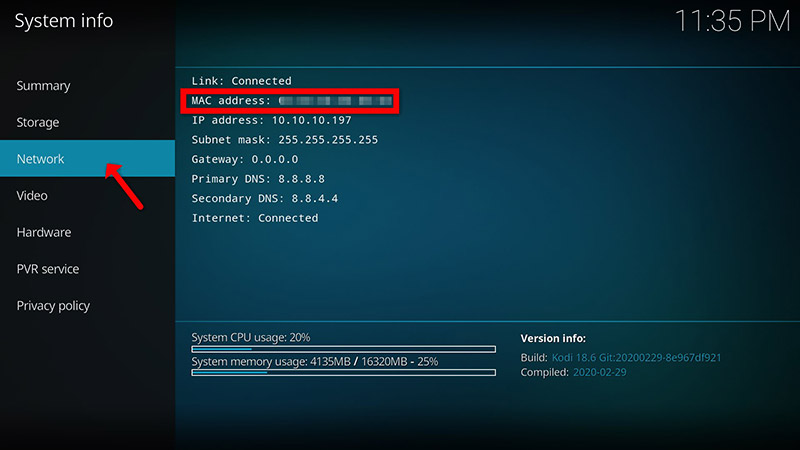
Tip: To find your MAC address in Kodi, go to System > System Info > Network, and write down the last six characters.
Step 8: Link MAC Address to Subscription
To link your MAC address to your IPTV subscription:
-
Log in to your IPTV provider’s panel.
-
Click on Change IPTV MAC Address and enter 00:1A:79: followed by the last six characters of your MAC address (e.g., 00:1A:79:03:E7:36).
Step 9: Enable Stalker Client
Select Enable to activate the add-on. When enabled, the option will change to Disable—don’t click Disable again.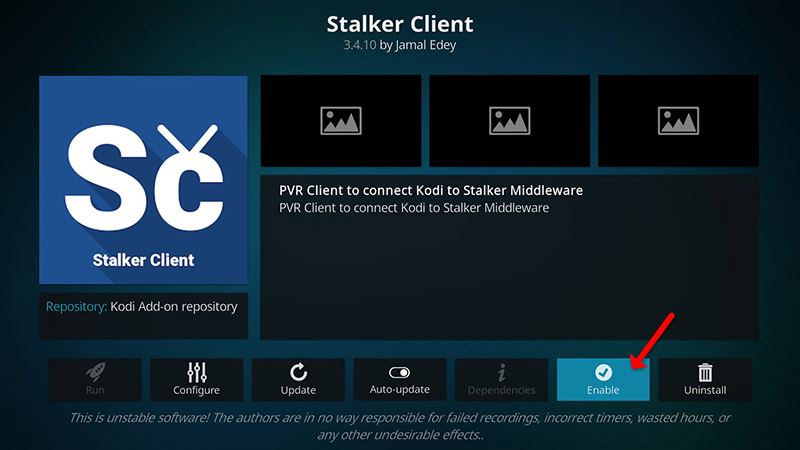
Step 10: Access IPTV Channels
Head to TV > Channels. For a smoother experience, restart your device before accessing the TV section.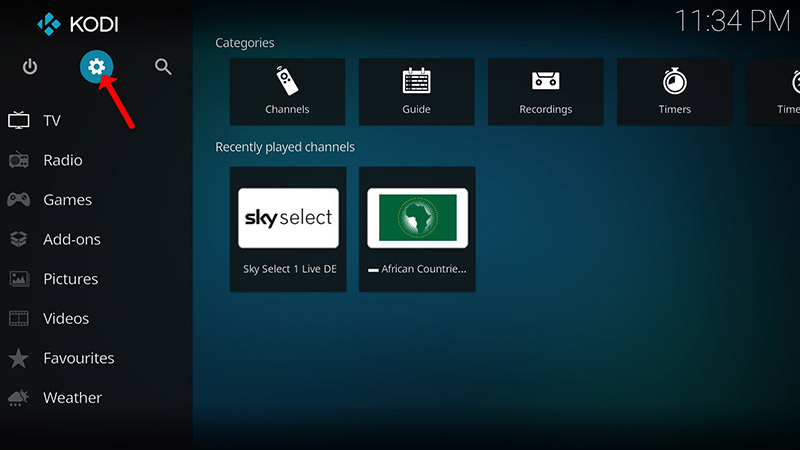
🎉 Conclusion
Kodi is an incredibly flexible media player, supporting various add-ons for enhanced functionality, like IPTV. While Stalker Client serves as a MAG emulator, it might not work well on all devices, so ensure you’re using it cautiously. Customize your Kodi experience by changing the interface’s color and skin, and enjoy endless media content!
We’d love to hear from you! If you have any questions about this tutorial or feedback about our website, feel free to share your thoughts in the comments. Your suggestions and opinions help us improve and serve you better. 💬👇
🌐 Developed by iptvhelpcenter.net
